Verify what you bought
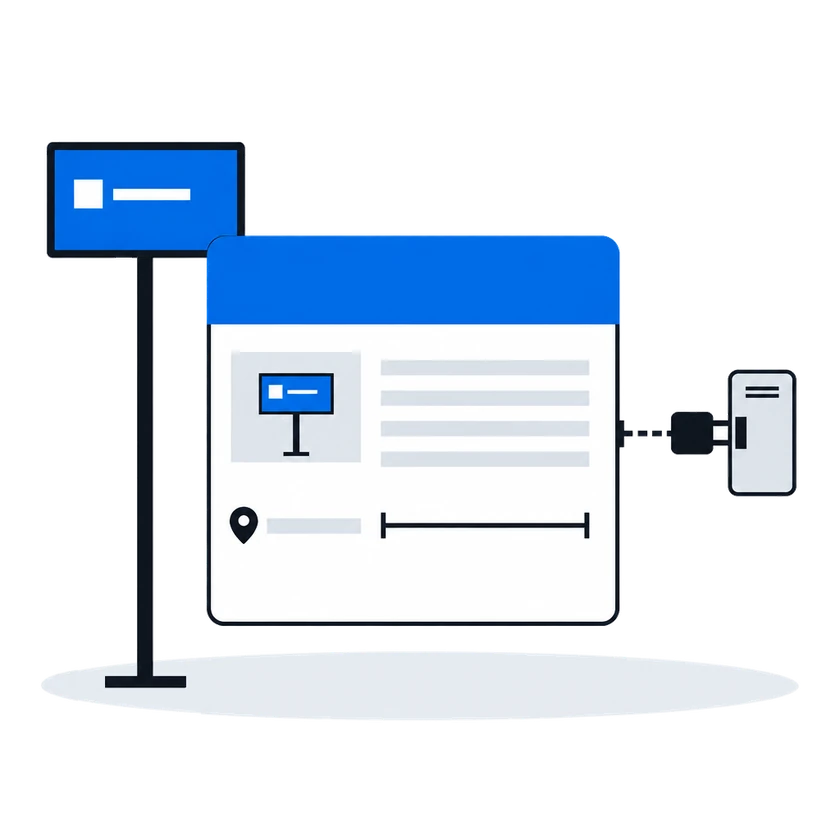
Buy DOOH on evidence: the outcome of every opportunity reported to you, photographs where the screen's CMS supplies them, and the price you pay in every auction win notice.
ExploreYour connection is registered once and appears in every media owner’s list. Every bid request shows the floor, and in an auction every losing bid says why. A rejected creative comes back with the reviewer’s reason, and an approved one with the faces you may bid on with it.
The context
For a buyer, each supply platform is its own project: screen sync, creative upload, a bidder and statistics, built again every time. Independent screen networks are many and small, so most of them never get connected, and their screens stay off the buyer’s plan.
01/03One connection, every media owner on the platform
“Every new supply platform means building the screen sync, the creative upload, the bidder and the statistics all over again.”
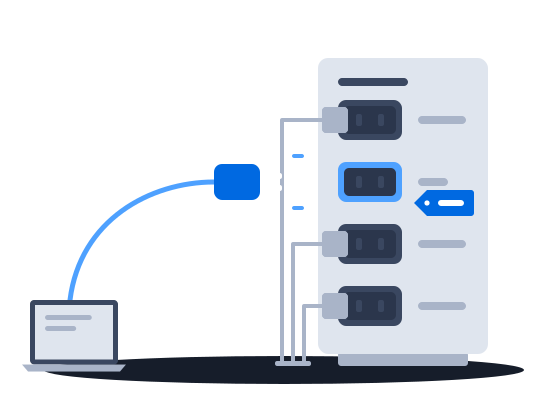
A demand partner is connected once for the whole platform and then appears in the list of every media owner on it, switched off until each one enables it. A buyer that speaks the platform's own protocol needs no special integration. Through that one connection you read a media owner's catalog, send creatives for review, answer bid requests and receive a win notice for each bid you win.
Registering a partner is platform administrator work. It creates one row in a registry shared by every organization on the installation. The partner’s identity and system type are fixed at that moment. Once the row exists, the partner appears in every organization’s list of demand partners, switched off.
Connecting and enabling a demand partnerA buyer that speaks the platform’s own SSP protocol needs no bespoke integration — it is registered under the generic SSP system type, of which any number may exist, and that is the route most new demand partners take.
Built-in adapters for named partners/requests) for your moderators to review. Nothing the partner bids can play until a creative of its has been approved and delivered to the content management system — see Creative approval.0203
“The floor is shown before every bid, and in an auction every losing bid comes back with its reason.”
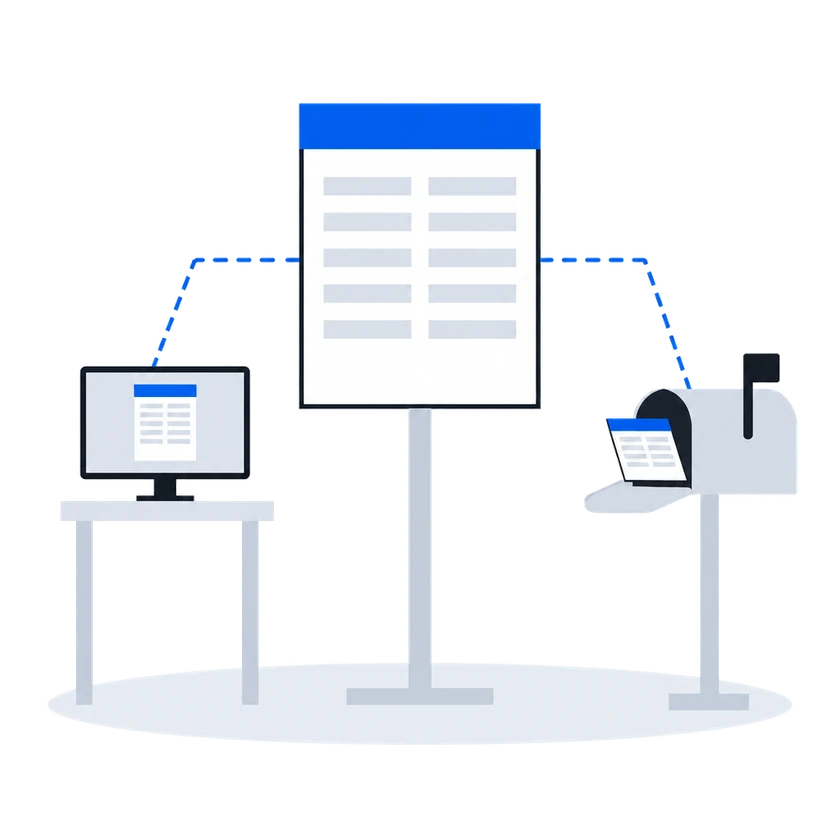
In the default second-price auction, the least bid that can win is shown before bidding: the media owner's floor, with the platform's commission on top. A bid that fails a check is dropped, and the reason is sent back. On a price list in auction mode, the winner pays a price set by the runner-up's bid and the floor, and every losing bid is answered with the reason and, when it lost on price, the winning amount. On such a price list, the winner pays its own bid only if the platform administrator has switched that winner to first price.
How it works, from the documentation (written for media owners)
A floor price is the least an organization will accept for one slot on one face. It is the number a demand partner is shown when it is offered the opportunity, and the number its bid is measured against when it answers.
In a second-price auction, the default, one thing happens between the number typed into the price list and the number a demand partner sees: the platform’s commission is added on top. The demand partner is asked to bid at least the amount that covers both the organization’s floor and the platform’s cut.
Bid floors, including audience-based floor pricingA partner’s answer has to survive several checks before it counts as a bid at all. An answer that fails one of them is dropped, and the partner is told why over the same channel used for loss notices.
Second-price RTB auctionEvery RTB price list runs in one of two modes, chosen when it is created and changeable afterwards.
Auction mode offers the opportunity to every demand partner in the price list at once and compares the bids that come back. This is the ordinary mode, and the one behind everything the RTB Auction section describes.
Waterfall mode asks the same partners and takes the first usable answer instead of comparing prices.
RTB price lists (targeting & priority groups)The auction is second price, unless the platform administrator has set first price for the winning partner, in which case the winner is charged its own bid. The winner is charged a clearing price derived from the runner-up’s bid and the floor price, expressed over the winner’s own creative length. Where there is no usable runner-up, the floor price is the basis.
The runner-up is the highest of the losing bids that does not exceed the winner’s, measured per second of creative. When the price list prices several creative lengths separately, only losing answers whose creative is the same length as the winner’s are considered; when the price list prices a single length, all losing answers are.
The clearing price is what the winning partner is told in its win notice, what the platform’s commission is calculated on, and what appears in reporting. The bid the partner originally submitted is recorded alongside it.
Every partner that answered and did not win is sent a loss notice carrying the reason and, where it lost on price, the winning amount.
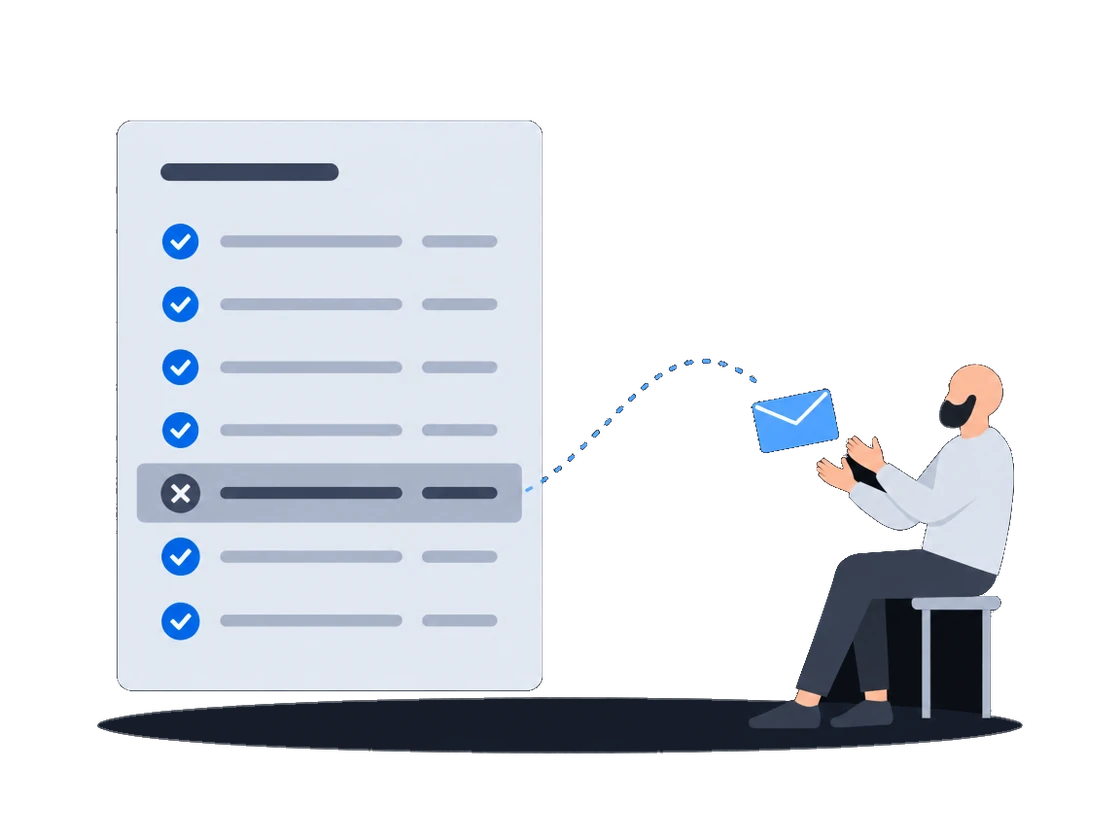
Second-price RTB auction“A creative comes back rejected, and we have to chase the supply side to find out why.”
What happens todayThe campaign waits while our account manager asks the supply side, the supply side asks the media owner, and the reason finally arrives in a chat.
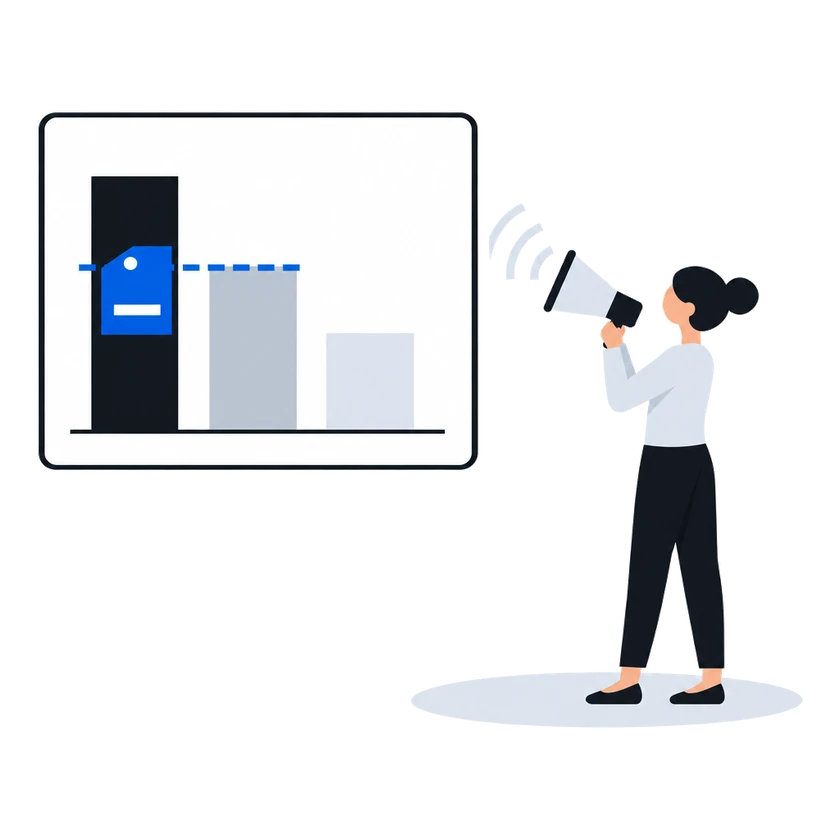
Every rejection carries the reviewer's reason, word for word, and when several departments object, their reasons arrive joined in one message. An approval tells you which faces the creative was cleared for, so you know where to bid. Each verdict is sent as a single notification, so check a creative's status yourself if you cannot afford to miss one.
How it works, from the documentation (written for media owners)
A reason is required on every rejection. It is free text, and it is sent to the demand partner verbatim.
If your organization uses employee positions, more than one person may reject the same creative before the outcome is settled. The platform waits for every position to vote, then combines them.
Only the rejecting positions contribute text. An approving position’s verdict carries no reason and adds nothing. The rejecting positions’ reasons are joined into one string separated by line breaks, and that joined string is what the demand partner receives as the rejection reason.
Rejection reasons & resubmission handlingOn approval the demand partner is told which faces the creative was approved for, so it knows where it may bid.
Reviewing, approving and rejecting creativesBoth flows tell the demand partner about a verdict — approval, rejection, or a layout sent back for review — with a single notification, sent after the decision is stored. The decision is recorded, the reason or comment is stored, and the queues show the outcome whether or not the partner received the notification. An integration that cannot afford to miss a verdict should also check status itself.
Rejection reasons & resubmission handlingBefore you start
What you doWhy, from the documentation
Agree with the platform administrator what kind of buyer you are registered as, because that decides whether you bid at all
Registering a partner is the platform administrator’s work. It adds one row to a registry the whole installation shares. The kind of buyer fixed on that row at registration decides whether the partner bids at all, whether a second row of that kind may exist, and which protocol the platform speaks to it — so it is worth agreeing with the partner what it should be before it is registered.
Connecting and enabling a demand partnerGet your provider identifier, and each media owner's identifier and access token
The partner needs four things from you before it can read your inventory or submit a creative:
Partners on their own protocols — the platform implements an adapter for each — need only the first three; Supported partners says which is which.
Connecting and enabling a demand partnerAsk the media owners who trust you to put you on their automatic approval list
An organization can name demand partners whose creatives are confirmed the moment they arrive. No employee sees them, no verdict is recorded, and nothing waits.
Automatic approval allow-list for trusted partnersSelling in real time
Other scenarios
Buy DOOH on evidence: the outcome of every opportunity reported to you, photographs where the screen's CMS supplies them, and the price you pay in every auction win notice.
Explore