



Proposals priced from your own price lists and sent in your own layout without creating a deal first, sites picked by the places around them, sites shown on a map without prices, and a discount limit enforced on save.
ExploreEach team in one system sees the deals and fields its work needs
A deal is open to its assignee and the teams it is shared with, and a new hire gets the team’s access once you add them to its group. A margin can stay hidden on a document the team reads. Each process that creates invoices has its own list of who may start it, and whoever takes over a deal finds the deal’s history in the deal itself.
The context
In a spreadsheet, or a CRM with one level of access, every regional team, the agency desk and finance see the same deals, the same margins and the same buttons. Narrowing that means setting up each person by hand, so access is granted generously and copied from whoever held the seat before.
01/05Each team works its own deals
“When a new employee joins a department, I have to configure all their access by hand.”
Access follows the team
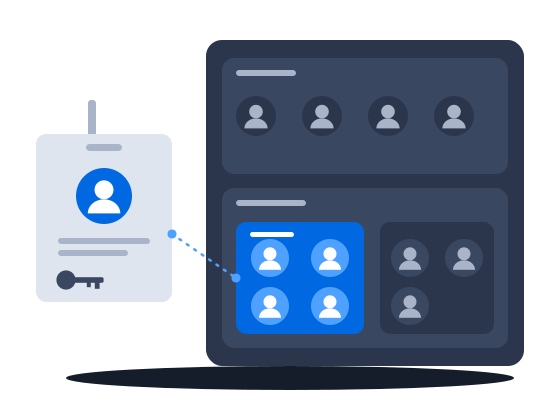
A deal is open to its assignee and to the teams it is shared with, so a regional team works its own pipeline. Give a role to a team's group, and everyone you add to the group gets it. Access only adds up: a person holds everything any of their groups grants, so one generous group is enough to open a record to them.
How it works, from the documentation
The assignee is used by the permission system to determine “own” access — an employee whose role grants permissions scoped to own records can see and work on deals where they are the assignee.
Employee groups attached to a deal extend visibility and access to all members of those groups. For permission purposes, membership in one of the deal’s groups counts as “own” access, the same way being the assignee does.
Use groups for team pipelines — for example, a regional sales team sharing all of its deals regardless of individual assignee.
Deal managementA group can have a default role — a permission role that is assigned to employees by virtue of their membership in the group. An employee’s effective permissions are the union of all roles from all groups they belong to.
Employee groupsAn employee belongs to one or more groups. Each group can carry one or more roles. The employee’s effective permissions are the union of all permissions from all roles in all groups they belong to.
If any group grants a permission, the employee has it, and no other group can take it away.
Roles and permissions0205
03AdministratorFinance “Any user could start any process, including the ones that touch invoices and deals.” →Each process has its own list of who may start it
“Any user could start any process, including the ones that touch invoices and deals.”
What happens todayAutomation is kept deliberately small because there is no way to say who may run what.
Each business process carries its own list of the roles allowed to start it, so a process that issues invoices can stay with the people who issue invoices. A role that can see a process but is not on that list cannot start it.
How it works, from the documentation
Launch permissions are controlled per process through the Roles & Access tab on the process detail page.
Each employee role can be granted or denied the right to launch a specific process. An employee can launch a process only if at least one of their roles has been granted launch access to that process.
Launch access is independent of the read, update, and delete permissions on the process record itself. An employee who can view a process definition cannot necessarily launch it.
Process triggers and launch rights04 “When a deal is disputed, the history is already there, because the system kept it on its own.” →The deal's history keeps itself
“When a deal is disputed, the history is already there, because the system kept it on its own.”
Comments and the stage changes people make land in one feed on the deal, with who made each change, and nobody can edit or delete a stage record. Whoever takes the deal over reads what happened in one place.
How it works, from the documentation
Every deal has an activity feed that combines two kinds of entries in a single chronological stream:
- Comments — free-text notes posted by employees.
- State-change records — system-generated entries that log each stage transition with before-and-after values.
Each time a deal moves from one stage to another, the system automatically writes a record into the activity feed. The record shows:
- the employee who made the change,
- the previous stage,
- the new stage,
- and, when the deal transitions to Paid, the payment details (type, amount, and date).
State-change records cannot be edited or deleted.
Because comments and state changes share the same feed, you can reconstruct the full negotiation history in one place — what happened, when, and who did it. This is especially useful when taking over a deal from another employee.
Deal activity log05 “Deactivating a leaver ends their sessions, tells the apps that registered a logout address that the employee signed out, and stops their tokens and mail passwords.” →A leaver is cut off in one action
“Deactivating a leaver ends their sessions, tells the apps that registered a logout address that the employee signed out, and stops their tokens and mail passwords.”
Deactivating an employee ends every session at once and removes the tokens and passwords they used to reach CS Deals. Applications that registered a logout address are told the employee signed out.
How it works, from the documentation
Deactivating an employee ends every session of the account at once. It also deletes the employee’s personal access tokens, app passwords, OAuth tokens, backup codes and authenticator app, and it tells connected applications that the employee signed out. Activating the account again does not bring any of these back.
Employee accountsAn administrator can end a single session of an employee, or all of their sessions at once. The confirmation for all sessions lists the connected applications that will be told the employee signed out.
SessionsCityScreen Deals sends a logout message to every application that has a logout address and holds a token of the employee when:
- the employee logs out, or ends a session;
- an administrator ends the employee’s sessions;
- the employee’s password is reset, or it expires and the sessions end;
- a password change ends sessions;
- the account is deactivated or deleted;
- the employee revokes the application’s authorization under Account > Authorizations.
A session that simply expires sends no message.
Sign-out across connected appsBefore you start
What the setup asks of you
What you doWhy, from the documentation
Build your teams and territories as a tree of employee groups
Groups can form a hierarchy: a group can have a parent group. Model your organizational structure as the group tree — for example, regions containing teams.
Employee groupsAdd every employee to their groups yourself, because nobody joins one on their own
A new employee is not automatically added to any group. You must add each employee to groups explicitly after creating their account.
Employee groupsGive each group the role its members need
Grant every new field to the roles that should see it
When a new field is created, the system automatically grants the creating employee’s roles the following field-level permissions:
- Read Own
- Update Own
- Delete Own
These defaults give the employee who created the field immediate access to it on their own records. Other employees and broader scopes (Group, Any) must be granted explicitly through the permission configuration.
Field-level permissionsName the roles that may start each business process
CS Deals · Features in this scenario9
Deals & sales pipeline
Process automation
Access & administration
Single sign-on & API access
Other scenarios
CS Deals, tuned to your network.
Malaysian e-invoices sent through ClearTax with the QR code attached to the invoice, a contract pack filled from the deal, and approved invoices posted to the ledger.
ExploreTwo-step verification you can require, a password policy, blocking of repeated failed sign-ins and an exportable sign-in log, a leaver cut off in one action, and a service account for each of your own systems.
ExploreYour administrator defines the documents you keep, their fields and calculations, and changes them as the business needs; each comes out in a layout you author, and the record types and fields you checked on a test organization reach production in one file.
ExploreOne sync turns a booked deal into a live CS Play campaign, a changed flight or price on a proposal already sent to CS Play is flagged for another sync, and the screen list arrives from CS Play every hour.
ExploreProcesses drawn in the product create and send the documents, each with its own list of who may start it; a failed step is marked on the diagram, and a new version leaves running work alone.
ExploreProof of posting for every face on one link for the advertiser, printing and installation sold in the same deal as the space, the free boards exported as a presentation, and lease dates a process can watch.
ExploreCount plays in a digital loop and positions on a scroller or tri-vision where you sell them, keep a campaign with several flights in one proposal, and keep quoted prices when the price list changes.
Explore