CS Deals · Scenario
Changing documents and fields yourself

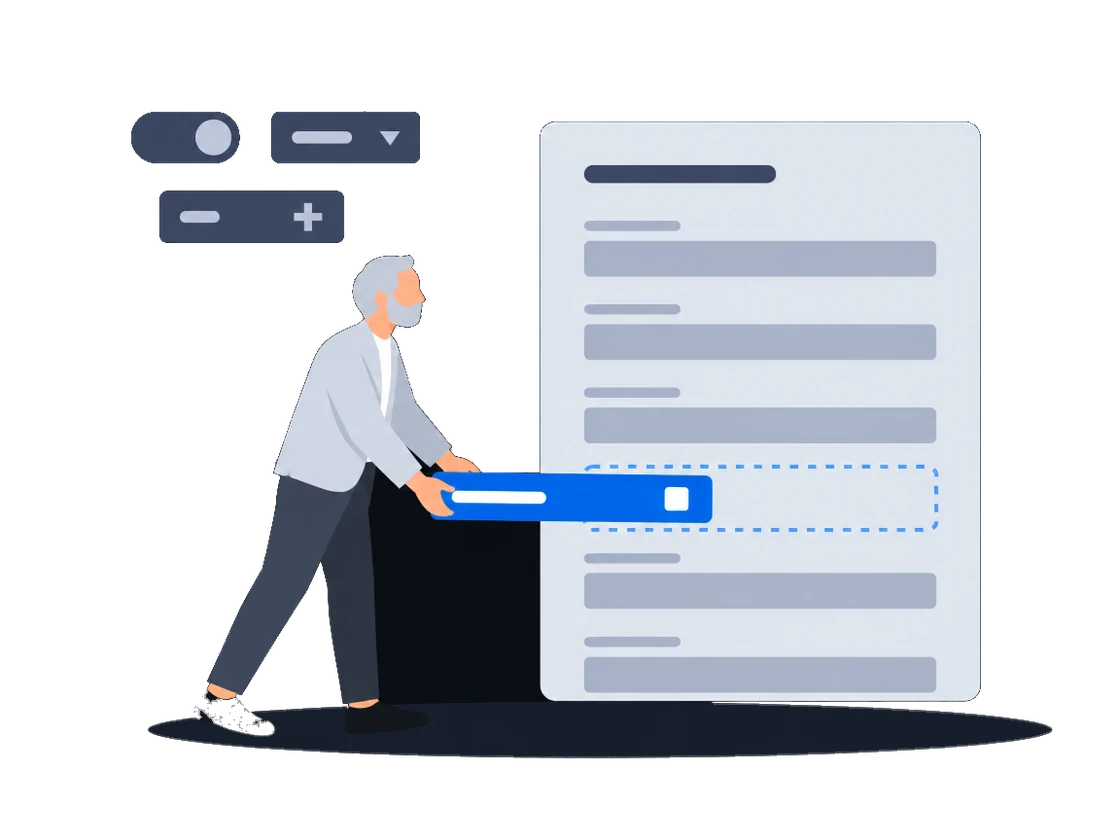
Your own document kinds, fields and layouts, set up by your administrator

Your administrator defines the documents and counterparties you keep, with their fields and calculations, and changes them as the business needs. Each document comes out in a Word or Excel layout you author, and the record types and fields you checked on a test organization reach production in one file.

Request a demo CS Deals documentation

The context

Out-of-home paperwork is local: what a contract must contain, which approvals it goes through and what an invoice looks like differ by market and often by client. Software that ships fixed document kinds leaves a spreadsheet beside it for everything it lacks, and that spreadsheet is where the totals go wrong.

01/04Document kinds, fields and calculations your administrator defines

“When the business needs a new kind of document, or one more field on an existing one, we add it ourselves.”

Document and counterparty kinds you define

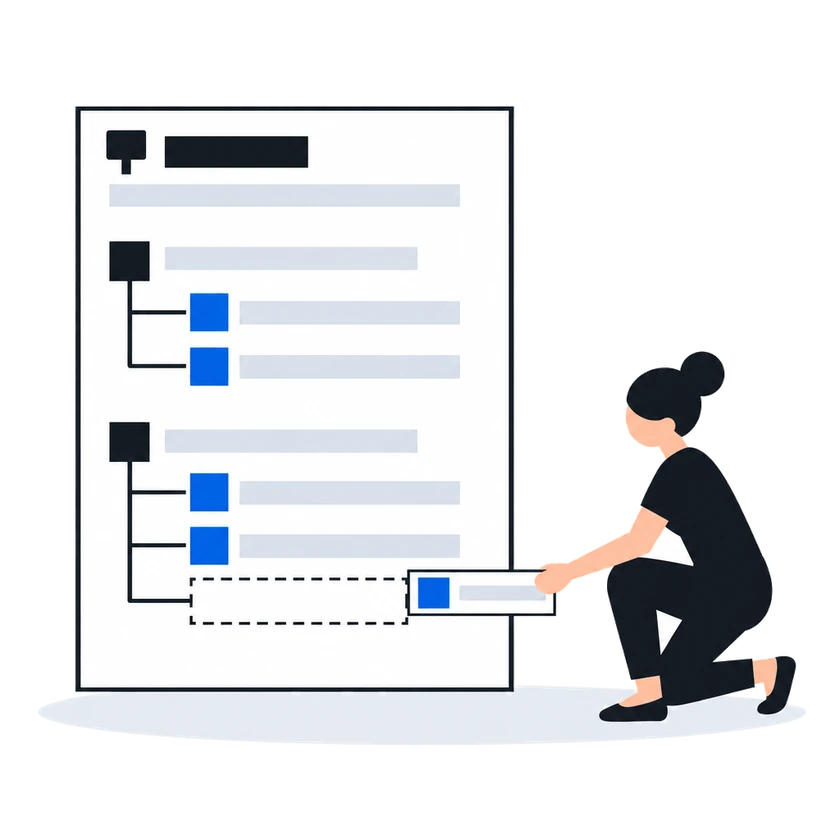
Your administrator defines the kinds of documents and counterparties you keep, with the fields each one needs, and changes them as the business needs. Numbering and statuses are fields your administrator sets up, and signed copies are kept as attachments.

How it works, from the documentation

CityScreen Deals ships with fixed product features — deals, proposals, inventory, pricing — that work the same way in every organization. Everything else — document kinds, counterparty types, custom fields, catalog directories, task definitions, report structures — is defined by each organization’s administrator using the entity system.

The entity system is the mechanism that makes this possible. It lets an administrator create new kinds of business records, give them fields, and put them to work in the product — all without a code release.

Custom entity types and fields

A document in CityScreen Deals is a record whose structure is defined by the administrator. Contracts, invoices, acceptance acts, and any other kinds of documents are document types the administrator creates. What document types your organization has, what fields they carry, and how they are used depends entirely on how the administrator has configured the platform through the entity type system.

Numbering. Sequential numbers on contracts or invoices are kept in a field the administrator defines and filled in manually or computed with an expression.

Approval status. Document statuses are kept in a field the administrator defines, typically a set or a link to a directory. Transitions are made manually or by a business process.

Signature. Documents are signed outside CityScreen Deals. Generate the document from a template, sign it, and upload the signed scan as a file attachment.

Documents

0204

02 “Our paperwork carries our own calculations, and nobody re-checks a total before sending.” Calculated fields your administrator sets up

“Our paperwork carries our own calculations, and nobody re-checks a total before sending.”

Your administrator adds fields that calculate themselves: a total on each line item, or values read from a linked record such as a site, which fill in the moment it is picked. Try each new formula on a test record before you rely on it.

How it works, from the documentation

An expression field is a computed field whose value is derived from other fields on the same record or on linked records. Users do not enter values into expression fields directly — the system calculates them.

Expressions and computed fields

Expression fields inside nested entities are evaluated per row. A nested expression can reference other fields in the same nested row or fields on the parent record through dot-path or JavaScript syntax.

Line items and repeating tables

When a user selects a value in a link field, the system immediately re-evaluates all dot-path expression fields on the same record that depend on the selected link. Dependent fields update as soon as the link value is chosen.

This mechanism is called auto-fill. It lets an administrator set up a record type so that selecting one reference (for example, a site) automatically populates several other fields (for example, division, company, sub-concession) without the user entering each value manually.

Auto-fill from a linked record

If a JavaScript expression produces no result, for example because it references a field that does not exist, the expression field stays empty.

Expressions and computed fields
03 “For a new country, we set up the contract, appendix and invoice ourselves, each as a template and a record type.” Your paperwork, in your own layout

“For a new country, we set up the contract, appendix and invoice ourselves, each as a template and a record type.”

Each document is generated from a template, a Word, Excel or PowerPoint file you author yourself that sets its layout, with placeholders the system fills from the record. You send the result in the same format or as a PDF.

How it works, from the documentation

A template is a file that defines the layout of a generated document. It contains placeholders — markers that the system replaces with real data when the document is produced.

Administrators upload templates and attach them to entity types. When a user generates a document from a record, the system fills the template’s placeholders with that record’s field values and returns a finished file.

Templates are uploaded as regular office files in one of three formats:

  • DOCX (Word) — contracts, invoices, letters, and any single-flow text document.
  • XLSX (Excel) — reports, price sheets, reconciliation workbooks, and any document that needs tabular calculations or multiple data sources.
  • PPTX (PowerPoint) — media kits, campaign summaries, and any document where each item occupies its own slide.

PDF is an output-only format — you cannot upload a PDF as a template. When generating a document, you choose whether to produce the output in the template’s native format or as a PDF converted from it.

Document templates
04Administrator “An organization with 20 record types, each with 10 to 30 fields, takes hours to configure by hand, and then the whole setup has to be typed again in production.” Move the setup from test to production

“An organization with 20 record types, each with 10 to 30 fields, takes hours to configure by hand, and then the whole setup has to be typed again in production.”

What happens todayErrors appear only after go-live, in front of the client, as a field that does not calculate.

Record types, with their fields and calculations, move from the test organization to production in one exported file, so nobody types them in again. Before anything is written, a dry run shows what would be created, changed or deleted, field by field.

How it works, from the documentation

Schema transfer lets you export entity type definitions from one organization and import them into another. This moves the structure — entity types, field groups, fields, and nested entity types — without moving the record data.

Before applying changes, the import runs a dry-run validation. The dry run parses the uploaded file, validates every entity type and field machine name, and returns a detailed diff showing what will happen for each entity type and each field:

  • Created — a new entity type or field will be added.
  • Updated — an existing field will be modified.
  • Deleted — a field or nested entity type will be removed (Overwrite mode only).
  • Unchanged — the definition matches what already exists.
  • Skipped — the entity type already exists (Create only mode).

The dry run also reports validation errors — invalid machine names, unsupported super types, malformed files, or files exceeding the size limit.

Schema transfer

Before you start

What the setup asks of you

What you doWhy, from the documentation

  • Choose each machine name with care: it cannot be changed later, and your templates refer to it

    Display name. A human-readable name shown throughout the interface. The display name can be changed later.

    Machine name. A unique identifier used internally by the system. The machine name must start with a letter and may contain letters, digits, and underscores.

    A machine name cannot be changed after the entity type is saved. Choose it carefully.

    Custom entity types and fields

    Fields are referenced by their machine names, the identifiers defined in the entity type system.

    Document templates
  • Upload a template for each document you send

  • Set up proposal types, group types, permissions, templates and processes again on production, because the file does not carry them

    A schema export does not include:

    • Record data (the actual documents, directory entries, or counterparty records).
    • Permissions (field-level or entity-type-level grants).
    • Templates attached to document or report types.
    • Business process definitions.

    Proposal types and Employee Group types cannot be transferred through schema import/export. These two super types must be recreated manually on the target organization.

    Schema transfer
  • Grant every new field to the roles that should see it

    When a new field is created, the system automatically grants the creating employee’s roles the following field-level permissions:

    • Read Own
    • Update Own
    • Delete Own

    These defaults give the employee who created the field immediate access to it on their own records. Other employees and broader scopes (Group, Any) must be granted explicitly through the permission configuration.

    Field-level permissions
CS Deals · Features in this scenario8

Other scenarios

CS Deals, tuned to your network.

Sales runs on Excel and email Selling out of spreadsheets

Proposals priced from your own price lists and sent in your own layout without creating a deal first, sites picked by the places around them, sites shown on a map without prices, and a discount limit enforced on save.

Explore
Several teams sharing one customer base Access set by team

Regional teams, an agency desk and finance in one system: deals open to the teams they are shared with, fields hidden from a group, a list of who may start each process, and a deal history whoever takes it over can read.

Explore
Statutory e-invoicing in Malaysia, a CODA ledger Paperwork the tax authority validates

Malaysian e-invoices sent through ClearTax with the QR code attached to the invoice, a contract pack filled from the deal, and approved invoices posted to the ledger.

Explore
Selling to clients with security questionnaires Passing a security review

Two-step verification you can require, a password policy, blocking of repeated failed sign-ins and an exportable sign-in log, a leaver cut off in one action, and a service account for each of your own systems.

Explore
Already running a playout platform Sales and playout in step

One sync turns a booked deal into a live CS Play campaign, a changed flight or price on a proposal already sent to CS Play is flagged for another sync, and the screen list arrives from CS Play every hour.

Explore
Repeatable procedures, few hands The desk that runs itself

Processes drawn in the product create and send the documents, each with its own list of who may start it; a failed step is marked on the diagram, and a new version leaves running work alone.

Explore
Static faces, routes, printed campaigns Billboards and poster sites

Proof of posting for every face on one link for the advertiser, printing and installation sold in the same deal as the space, the free boards exported as a presentation, and lease dates a process can watch.

Explore
Screens and rotating faces sold in parts Loops and rotations

Count plays in a digital loop and positions on a scroller or tri-vision where you sell them, keep a campaign with several flights in one proposal, and keep quoted prices when the price list changes.

Explore

CS Deals overview

Run your sales on CS Deals.