CS Deals · Scenario
Putting every sold deal on air in CS Play

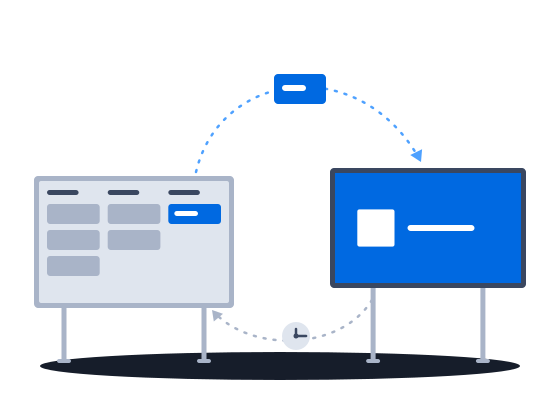
One sync puts a booked deal on air in CS Play

One sync turns a booked deal into a live CS Play campaign, creatives and all, and a proposal with several flights can go flight by flight. A changed flight or price on a proposal already sent to CS Play is flagged for another sync, and the screen list arrives from CS Play every hour.

Request a demo CS Deals documentation

The context

A media owner who sells in one system and plays in another pays for the gap twice: once when the booking is typed into the playout system, and again when what plays differs from what was sold. CS Deals and CS Play are two halves of one lifecycle: the sale up to the booking, and the campaign on air.

01/03The booked deal becomes the campaign on air

“Sales runs in one system and playout in another, and the same campaign gets typed into both.”

Ad operationsSales managerIT / integrations

CS Play plays the deal as sold in CS Deals

Once a deal is booked or paid, one sync sends it to CS Play as a live campaign: its creatives are uploaded, the ads are built and the campaign is switched on. A proposal with several flights can go flight by flight, and each sync of a proposal keeps a record of who started it, when, and any error.

How it works, from the documentation

Once a deal reaches the Booked or Paid stage, its digital content can be pushed to CityScreen Play as a live campaign. This is the outbound half of the integration: Deals tells CS Play what to play, on which screens, and when.

When a campaign export runs, the pipeline:

  1. Creates a draft campaign in CS Play (or updates an existing one).
  2. Uploads any new creative files.
  3. Creates or updates ads linked to those creatives.
  4. Deactivates ads whose creative was disabled or whose files changed.
  5. Activates the campaign.

The proposal’s Synchronization tab offers finer-grained control. Here, each placement period within the proposal becomes its own CS Play campaign. This is the recommended approach for proposals with multiple flights, because each flight can be pushed and tracked independently.

The Synchronization tab maintains a full history of every push attempt — type, status, who triggered it, when, the external campaign ID, and any error text.

Campaign export to CS Play

0203

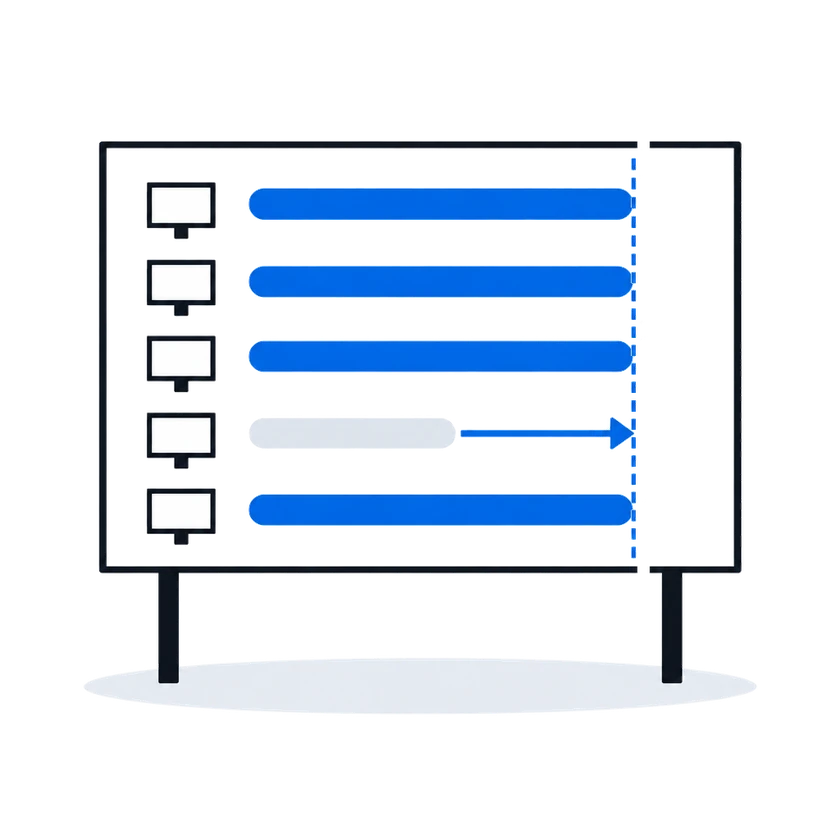
02 “When a booked flight changes, we can see which campaigns on air no longer match the deal.” Changed proposals are marked for another sync

“When a booked flight changes, we can see which campaigns on air no longer match the deal.”

When the flights or prices of a proposal already sent to CS Play change, the proposal and the affected flights are marked as needing an update. You send the change to CS Play by syncing the proposal again when the change is ready.

How it works, from the documentation

If a proposal was already successfully synchronized and its periods or prices are later edited, Deals marks the proposal and the affected periods as requiring re-sync. A Requires Update entry appears in the sync history.

This flag is informational. To send the updated content to CS Play, click Synchronize again.

Campaign export to CS Play
03Ad operationsAdministratorIT / integrations “When the sync does not run, there is no information at all about what is wrong or why.” See whether the last sync worked

“When the sync does not run, there is no information at all about what is wrong or why.”

What happens todayYou find out because a screen you expected to sell is not in the list.

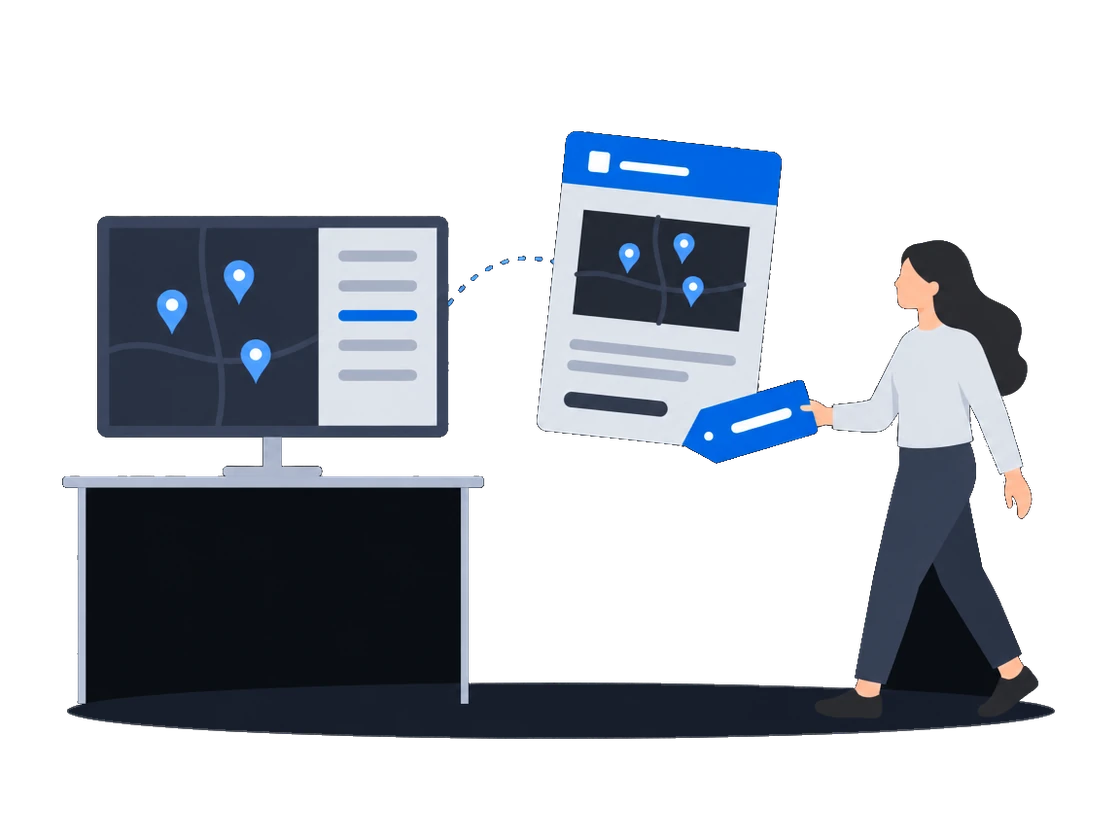
The sync settings show when the last run happened, whether it succeeded and how many screens it brought in. If something looks wrong, start a run yourself at once.

How it works, from the documentation

Each run writes a log entry visible under Settings → Sync → Synchronization logs. The log shows the start and end time, whether the run succeeded, and the count of displays created and updated. Only the most recent run is retained.

To pull the display list immediately, click Synchronize on the CMS integration section in Settings → Sync. This triggers an immediate pull. If another sync is already in progress, it is canceled first.

Screen catalog from CS Play

Before you start

What the setup asks of you

What you doWhy, from the documentation

  • Ask CityScreen staff to switch on screen synchronization, then turn on the CMS integration with your CS Play address, token and organization

    The inventory sync requires two independent switches to both be on:

    1. Digital display synchronization — CityScreen enables it for your organization on request. Until it is enabled, the CMS integration checkbox in Settings cannot be switched on.
    2. CMS integration enabled — the toggle in Settings → Sync → CMS integration, controlled by the tenant administrator. The administrator also enters the CS Play base URL, access token, and CS Play organization ID here.

    Both gates must be open for the hourly sync to run.

    Screen catalog from CS Play
  • Change the screen fields that come from CS Play in CS Play, because they are read-only in CS Deals

    Once a digital display has been synchronized from CS Play, the fields that CS Play owns become read-only in Deals. The interface prevents edits in Deals, because the next sync run would overwrite them. To change a synchronized field, change it in CityScreen Play; the next sync run carries the update into Deals.

    Screen catalog from CS Play
  • Choose for each deal whether to sync the whole deal or each proposal, and do not mix the two

    Two push granularities exist: deal-level and proposal-level. They are independent mechanisms and should not be mixed for the same deal.

    Campaign export to CS Play
  • Before you sync, book the deal or record its payment, and keep each creative's dates inside its flight

    The campaign export validates several conditions before starting:

    • The deal must be in the Booked or Paid stage.
    • At least one proposal must exist.
    • Creative date ranges must fall inside their proposal period bounds.
    • No other sync may be in progress for the same deal or proposal.

    If any condition fails, the sync is rejected with an error.

    Campaign export to CS Play
CS Deals · Features in this scenario2

Other scenarios

CS Deals, tuned to your network.

Sales runs on Excel and email Selling out of spreadsheets

Proposals priced from your own price lists and sent in your own layout without creating a deal first, sites picked by the places around them, sites shown on a map without prices, and a discount limit enforced on save.

Explore
Several teams sharing one customer base Access set by team

Regional teams, an agency desk and finance in one system: deals open to the teams they are shared with, fields hidden from a group, a list of who may start each process, and a deal history whoever takes it over can read.

Explore
Statutory e-invoicing in Malaysia, a CODA ledger Paperwork the tax authority validates

Malaysian e-invoices sent through ClearTax with the QR code attached to the invoice, a contract pack filled from the deal, and approved invoices posted to the ledger.

Explore
Selling to clients with security questionnaires Passing a security review

Two-step verification you can require, a password policy, blocking of repeated failed sign-ins and an exportable sign-in log, a leaver cut off in one action, and a service account for each of your own systems.

Explore
Documents and approvals that are yours Our own paperwork and rules

Your administrator defines the documents you keep, their fields and calculations, and changes them as the business needs; each comes out in a layout you author, and the record types and fields you checked on a test organization reach production in one file.

Explore
Repeatable procedures, few hands The desk that runs itself

Processes drawn in the product create and send the documents, each with its own list of who may start it; a failed step is marked on the diagram, and a new version leaves running work alone.

Explore
Static faces, routes, printed campaigns Billboards and poster sites

Proof of posting for every face on one link for the advertiser, printing and installation sold in the same deal as the space, the free boards exported as a presentation, and lease dates a process can watch.

Explore
Screens and rotating faces sold in parts Loops and rotations

Count plays in a digital loop and positions on a scroller or tri-vision where you sell them, keep a campaign with several flights in one proposal, and keep quoted prices when the price list changes.

Explore

CS Deals overview

Run your sales on CS Deals.