Regional teams, an agency desk and finance in one system: deals open to the teams they are shared with, fields hidden from a group, a list of who may start each process, and a deal history whoever takes it over can read.
ExploreProposals priced from your own price lists as you pick the sites
Pick the screens or boards to offer, and the proposal is priced from your price lists and comes out in your own layout, with no deal to create first. The sites can be picked by the places around them, starting from the advertiser’s brief. The customer sees the sites on a map without your prices, and a proposal with a discount above your limit is refused when it is saved.
The context
A general-purpose CRM has no record of your screens or your price lists. So the proposal is put together outside it, by hand, in a spreadsheet: the customer gets a bare list of addresses, and nothing stops a discount nobody approved.
01/04A proposal priced from your price lists, in your own layout
“We export availability to Excel, look the rates up by hand, and paste the whole thing together in a spreadsheet. Every proposal is a small assembly job.”
The proposal comes out priced and in your layout
In a quick proposal, pick the screens or boards to offer, and they are priced from your price lists exactly as in a proposal in a deal. The file comes out in your own template as Word, Excel or PDF, with no deal or customer to create first. A screen fully booked for the chosen dates is left out of the list, but one that is partly booked or held by a reserved deal is listed without a warning, so check what is still free in the saturation view. When the customer says yes, you create a deal and build the proposal there.
How it works, from the documentation
Select inventory — filter and select displays or directory items in the inventory picker. The bar under the table shows how many items are selected, their total cost, any qualifying volume discount, a Discount field for your own discount, and the total. The same pricing used by proposals in a deal calculates these values.
Choose a format and download — pick one of the proposal type’s templates and one of the formats it offers, or download the standard XLSX when the type has no template.
For digital and printed proposal types, Quick Proposal leaves out the displays that are fully booked for the chosen period, and the strip above the table reads Available only. It lists every other display without an occupancy figure, including partly booked displays and displays held by a Reserved deal. To see what is still free before you quote, use the saturation view.
Quick Proposal creates no deal, no proposal, and no customer record. The wizard is entirely read-only against the inventory catalog and price lists.
To go on with a customer who accepts, create a deal and build its proposals there.
Quick proposal0204
02 “When the brief asks for sites near gyms and away from schools, we can show the client exactly those sites, with the distance to the nearest gym.” →Sites picked by what stands around them
“When the brief asks for sites near gyms and away from schools, we can show the client exactly those sites, with the distance to the nearest gym.”
While you pick the inventory, choose the kinds of places the campaign needs, such as gyms, or places by name, and keep the sites that have them within the radius you set. Sites near a place to avoid are left out. Each place to be near adds a column with the distance to the nearest one, and the sites can be sorted by it. You can start from the advertiser's brief: CS Deals suggests the places and the radius, and the filter changes only when you apply the suggestion. A site without coordinates cannot be measured, so it is left out while such a search is on.
How it works, from the documentation
In Near places, choose a place from + Add a place… and set its radius. Each place row then keeps or leaves out displays:
- *✓ Near keeps the displays that have such a place within the radius. The number field next to the radius sets how many such places must be within it.
- *✗ Not near leaves out the displays that have such a place within the radius.
Every change to a row applies to the list at once, and × removes the row.
Each ✓ Near place adds a column to the table, headed by the place and the radius, for example Cafe ≤ 300 m. A cell shows how many such places are within the radius and the distance to the nearest one, for example 2 · nearest 40 m, with the name of the nearest place under it. A display with no such place in the radius shows none. The column can be sorted.
Nearby placesPaste the advertiser’s brief into the text box at the top of Nearby POI and click Analyse brief. The brief can describe the product, the creative, the audience and the goal. CS Deals reads it and suggests:
- a short strategy;
- the categories of places to be near, ranked by relevance;
- the categories of places to avoid;
- a radius.
The analysis can take a few minutes, and the button counts the seconds while it runs.
The suggestion changes nothing in the filter until you click Apply suggestion. Then, in one change:
- each green category becomes a *✓ Near place at the suggested radius;
- each red category becomes a *✗ Not near place;
- the city named in the brief goes to City / Region;
- for the digital proposal type, the duration and frequency named in the brief are set when they match the options on offer.
Formats, criteria and search words found in the brief are only listed under Pre-filled from the brief, for you to set by hand.
Brief analysisThe distance to a place is measured from the display’s coordinates. While Near places holds a place, as ✓ Near or ✗ Not near, displays without coordinates are left out of the list, and a notice above the table says so.
Nearby places03Sales manager “The customer gets a spreadsheet of addresses and cannot tell whether those sites are across town from each other or all on one street.” →Send the sites on a map
“The customer gets a spreadsheet of addresses and cannot tell whether those sites are across town from each other or all on one street.”
What happens todayProposals come back with questions about where the sites are, and the budget decision waits a round trip.
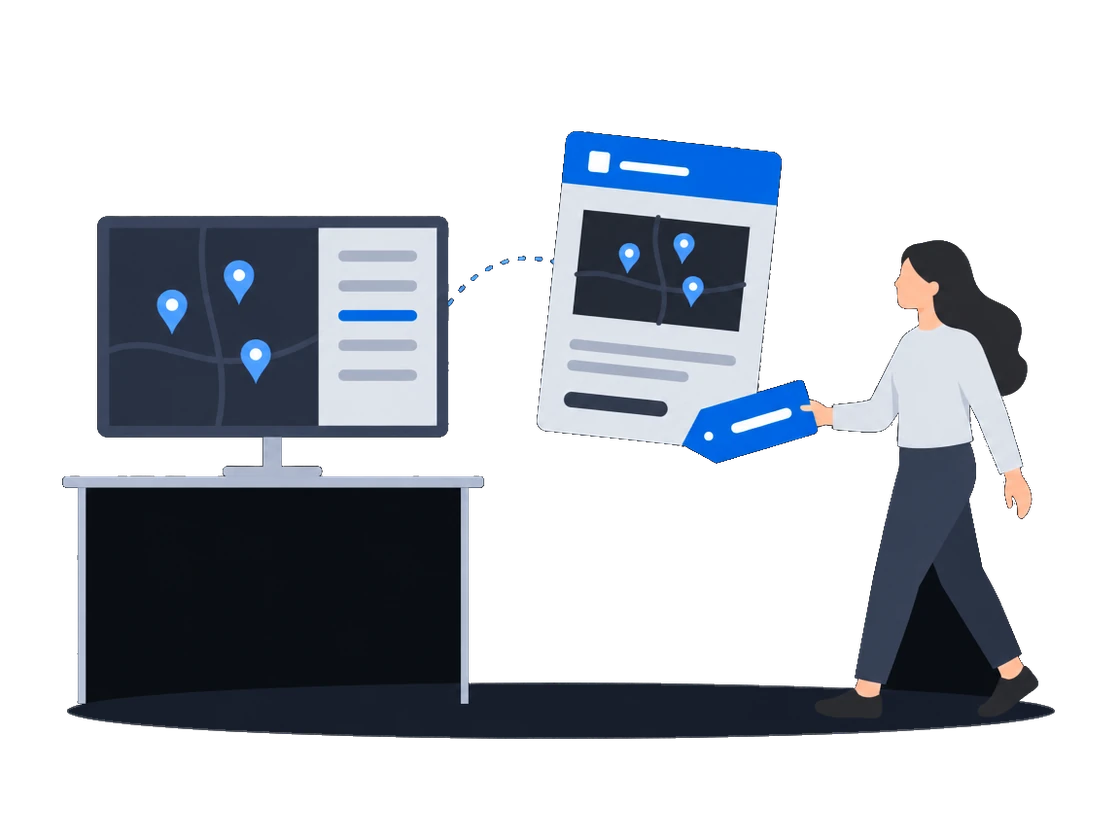
The standard spreadsheet of a quick proposal carries a link to a map of its sites. The customer opens it without an account and sees each site's name, address and format with no prices, and the link expires on its own. A file made from your own template carries no such link.
How it works, from the documentation
When a Quick Proposal is downloaded as the standard XLSX or the combined XLSX, the file includes a link that opens a map of the displays selected in that proposal. Files made from a template carry no map link. The map is public — the recipient does not need an account.
It resolves against current inventory data each time it is opened, so if a display has been renamed or updated since the link was generated, the map reflects the current state. Displays that have been deleted since link generation, and displays without coordinates, are omitted.
Scope. The displays selected in one Quick Proposal.
Lifetime. The link expires on its own after a set period, counted from the export, and then stops working.
Data shown. Display name, address, format, and installation kind. Price and discount are never included.
Shareable inventory links04Owner / GMHead of sales “Different customers get different discounts, and there is nothing stopping a sales manager entering a number the business would not have approved.” →A discount above the limit will not save
“Different customers get different discounts, and there is nothing stopping a sales manager entering a number the business would not have approved.”
What happens todayThe commercial director hears about the discount when the invoice is issued.
Your organization sets the largest discount a proposal may carry, and a customer can carry its own limit in its place. A proposal with a discount above the limit is refused when it is saved.
How it works, from the documentation
The organization can set a default maximum discount percentage. When a proposal is saved, the system validates that no individual item’s discount exceeds this cap.
If any item’s discount exceeds the cap, the save is rejected.
A customer record can carry its own maximum discount value. When set, this value replaces the organization-wide default entirely for proposals on deals associated with that customer.
If the customer has no override, the organization default applies.
Discounts and limitsBefore you start
What the setup asks of you
What you doWhy, from the documentation
Load your screens and boards from your spreadsheets, and check the file first, because a load cannot be undone
CityScreen Deals can import records in bulk from spreadsheet files. Three record types support import:
- Counterparties (customers)
- Digital displays
- Printed displays
An import saves its rows in small portions as it runs and cannot be rolled back. If the import fails partway through, the rows already saved remain in the system. Review your data carefully before importing.
Bulk inventory and customer importAssign every screen and board you sell to a price list
A price list defines the rates at which inventory items are sold. Every display or directory item that should carry a price in a proposal must be assigned to a price list.
Price listsUpload your proposal template, or start with the plain spreadsheet export
Quoted in “The proposal comes out priced and in your layout” above Quick proposal
A template is a file that defines the layout of a generated document. It contains placeholders — markers that the system replaces with real data when the document is produced.
Administrators upload templates and attach them to entity types. When a user generates a document from a record, the system fills the template’s placeholders with that record’s field values and returns a finished file.
Document templatesSet the largest discount for your organization, and for each customer who gets a different one
CS Deals · Features in this scenario8
Inventory & availability
Price lists & pricing
Proposals & quoting
Document templates & generation
Other scenarios
CS Deals, tuned to your network.
Malaysian e-invoices sent through ClearTax with the QR code attached to the invoice, a contract pack filled from the deal, and approved invoices posted to the ledger.
ExploreTwo-step verification you can require, a password policy, blocking of repeated failed sign-ins and an exportable sign-in log, a leaver cut off in one action, and a service account for each of your own systems.
ExploreYour administrator defines the documents you keep, their fields and calculations, and changes them as the business needs; each comes out in a layout you author, and the record types and fields you checked on a test organization reach production in one file.
ExploreOne sync turns a booked deal into a live CS Play campaign, a changed flight or price on a proposal already sent to CS Play is flagged for another sync, and the screen list arrives from CS Play every hour.
ExploreProcesses drawn in the product create and send the documents, each with its own list of who may start it; a failed step is marked on the diagram, and a new version leaves running work alone.
ExploreProof of posting for every face on one link for the advertiser, printing and installation sold in the same deal as the space, the free boards exported as a presentation, and lease dates a process can watch.
ExploreCount plays in a digital loop and positions on a scroller or tri-vision where you sell them, keep a campaign with several flights in one proposal, and keep quoted prices when the price list changes.
Explore