1–50 screens · starting out
First screens
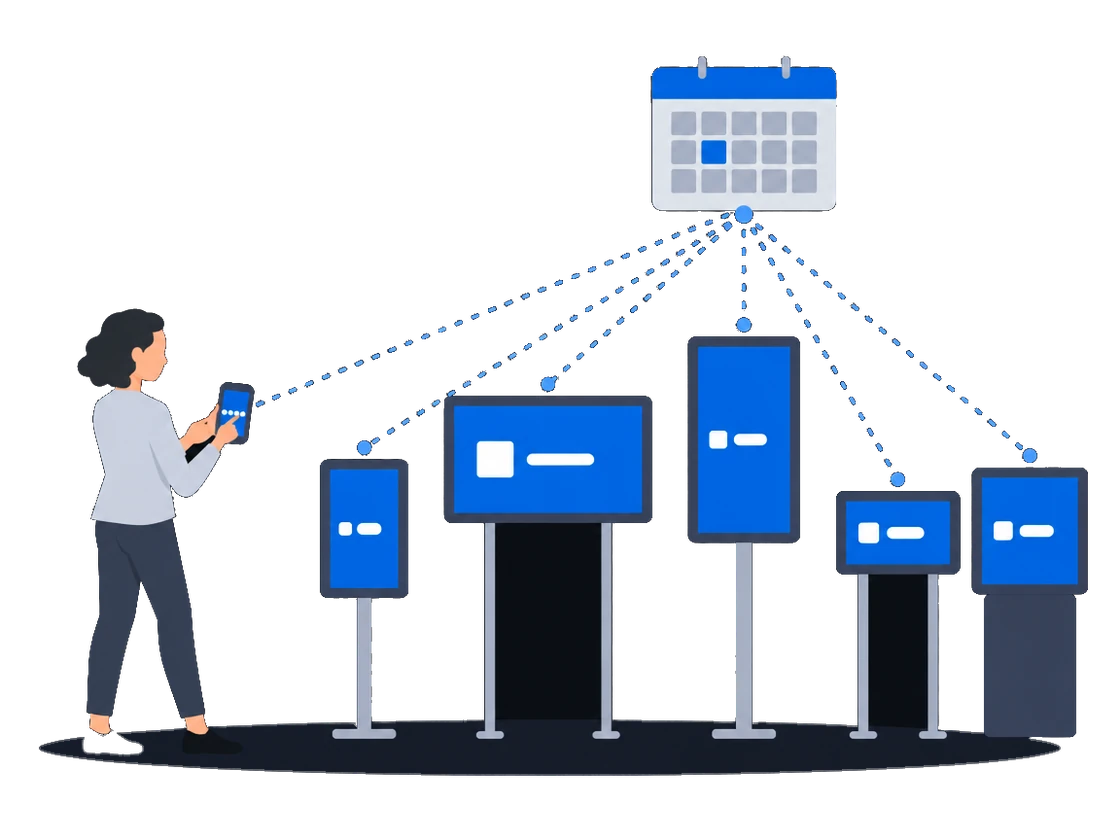
Start a DOOH network on hardware you already own: PIN pairing, one ad for every resolution, and a default schedule that new screens pick up automatically.
ExploreA camera at the site photographs the board while ads play and links each photo to its ad play. An email tells you when a player drops off the network, and the photos show a board that has gone dark while its player stays online. The board dims at dusk and brightens at dawn on a curve you set once.
The context
Roadside boards stand far from the office, and nobody drives past each one every day. Generic tools only know what the player reports, so the advertiser who asks how the campaign looked on site gets a log line, and a board that went dark while its player kept working stays dark until someone passes by. Brightness is left to the controller at the site, or typed in entry by entry.
01/03Photos of the board, linked to each ad play
“I cannot show the client how their ad looked on the screen”
A camera installed at the screen photographs it while ads play, and each photo is linked to the ad play it shows. Send the advertiser the photos with the record of ad plays, as an export file or as an archive of their campaign's photos. For an advertiser who wants every play on camera, photograph every play of that campaign and keep the rest on the regular photo schedule, because full coverage fills your photo storage quickly.
CamGrabber is a camera device installed at the screen that automatically photographs the physical screen while ads play. Each photo is linked to a specific ad play, providing photographic proof of play.
CS Play CamGrabber photo reportsTo get full photographic coverage of one campaign regardless of the counters, enable the Photo report of each ad play checkbox in the campaign settings (“Photo report” section). Every play of every ad in that campaign is then photographed.
Use this for campaigns where the client requires complete proof of play, and keep the scheduled counters for routine monitoring — full coverage fills the disk quota quickly.
CS Play CamGrabber photo reports0203
“A screen was black for 3 days and we heard it from the client”
What happens todayNo signal that a device dropped out
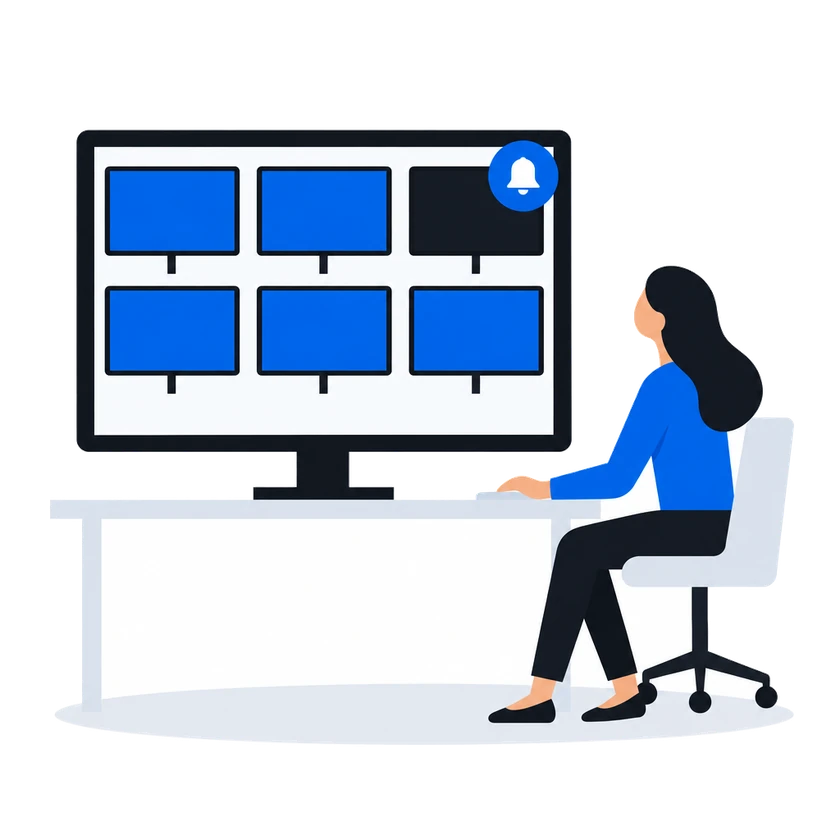
Nothing alerts you when a screen goes black while its player stays online: the offline email comes only when a player drops off the network. Two things show a dark screen instead: the time of the last ad play gives away a player that has stopped playing, and a camera photo shows whether the screen itself is working and can be seen. New administrators get the offline email from the start.
How it works, from the documentation
Last seen online is a heartbeat and nothing else. The player application pings the server on its own schedule; this timestamp holds the moment the last ping arrived. A player with an empty playlist, a half-finished content download or a dead LED panel goes on pinging exactly as before, so a fresh timestamp proves the device is reachable — not that anything reached the screen.
To find out what the player actually played, use the Last playback column of the players list and Ad Play Statistics. Contact and playback are independent facts and are recorded separately.
Device state visibilityPhoto Captures is a gallery of photos taken by CamGrabber camera devices — real photographs of the physical screens captured while ads play. Use photo captures to verify that content is playing correctly, that screens are operational, and that they are visible and unobstructed.
Screen photo capturePlayer online/offline events support per-user delivery preferences. In the user profile, each user can independently toggle:
New administrator accounts are auto-subscribed to player-offline email notifications by default.
Email alerts“To dim the screen at dusk I type dozens of brightness entries by hand”
What happens todayBrightness is set entry by entry, and one wrong entry leaves a screen black while its player keeps working
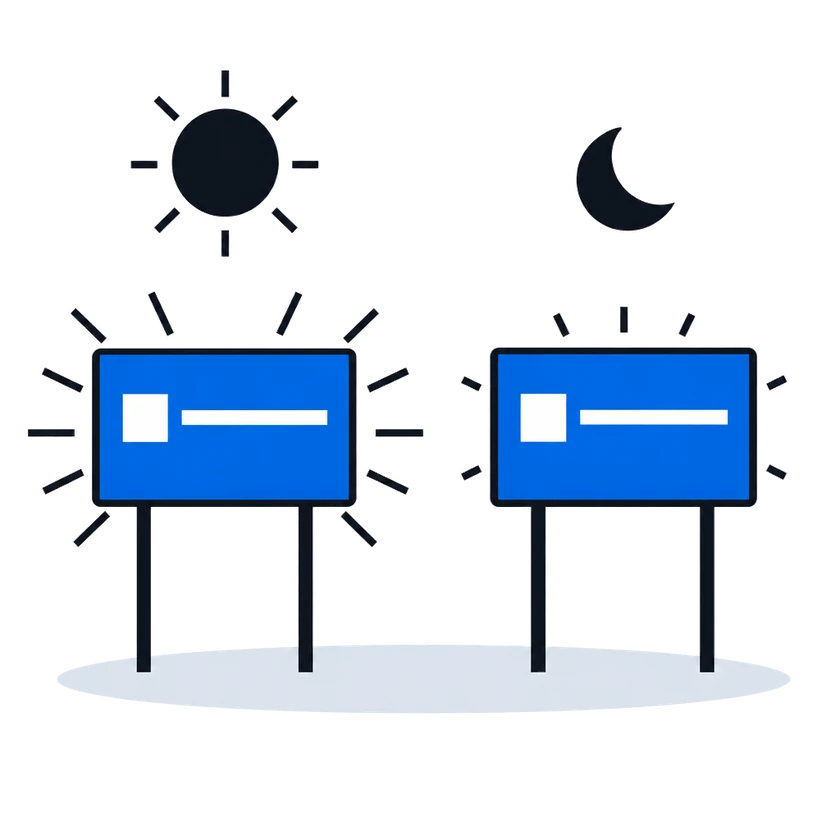
Enter when sunrise and sunset begin and how bright the screen should be by day and by night, and the brightness steps between them are generated for you. The setting lives in a settings policy, so every screen whose player has that policy follows it. Dimming in software can distort the colours of an LED screen, so a screen with a NovaStar controller can take its brightness through the controller instead.
How it works, from the documentation
Instead of entering schedule steps manually, generate a smooth day/night curve. Click Sunrise/Sunset and define:
Brightness is configured in the Brightness settings section of a player settings policy and applies to every player the policy is assigned to.
Scheduled brightnessSoftware dimming can distort color rendering on LED screens — this is a property of how LED diodes work. For LED installations prefer a hardware controller.
In NovaStar brightness mode, the player drives an LED screen’s brightness through a NovaStar controller attached to the player device over a serial port. Select the Device model and enter the serial Port name; the baud rate is set automatically for the chosen model.
NovaStar LED brightness controlBefore you start
What you doWhy, from the documentation
Put a camera at each board whose advertisers want photos, register it on that board's player and give it a paid licence
A CamGrabber device is registered on the player it films: Players > select the player > CamGrabber tab (administrator and partner accounts only).
The device receives its credential and starts uploading photos. Photos survive network outages — the device queues them locally and retries.
A CamGrabber licence is attached to one grabber device, not to a screen and not to a player. It is what decides whose campaigns that device may photograph:
Free. The device photographs only platform programmatic campaigns. Your own campaigns are refused. Free devices do not draw on the paid pool.
Paid. The device photographs your organization’s own campaigns, honours the photo-report schedule and the per-ad shot counter, and can be put under a campaign’s full-coverage setting. It takes one licence out of the organization’s paid pool for as long as it holds it.
CS Play CamGrabber photo reportsSet in the player settings policy how many plays of each ad the camera photographs, and switch on a photo of every play only for campaigns whose client asks for it, because it fills the disk quota quickly
How many photos are taken and when is controlled by the player settings policy (Players > Player settings; see Settings Policies):
For example, a schedule entry every Monday 00:00 with a counter of 3 yields three photos of every ad, every week.
Scheduled photo reports require a paid CamGrabber license — for free-licensed devices the schedule is ignored.
Quoted in “Show the advertiser the screen itself, not a log line” above CS Play CamGrabber photo reports
Have everyone who must react to a dropped player switch on email for player offline events in their profile, because only new administrators get these emails by default
Generate a sunrise and sunset curve in the brightness settings of a player settings policy, and assign that policy to the players of your boards
Customers in this situation
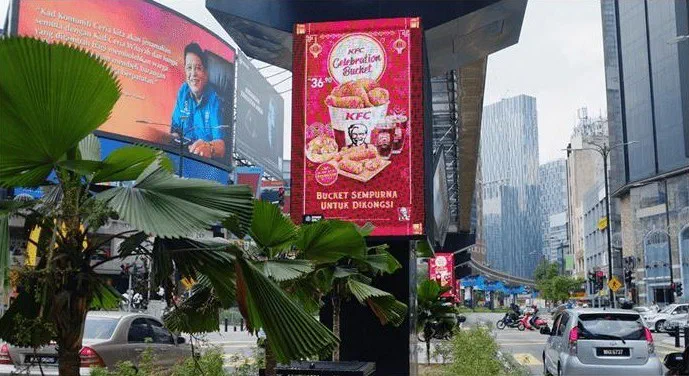
Big Tree, Malaysia's biggest digital out-of-home operator, plays video ads on its screens for more than 16 hours a day with CS Play and media players from CityScreen. It also uses CS Deals and CS Context.
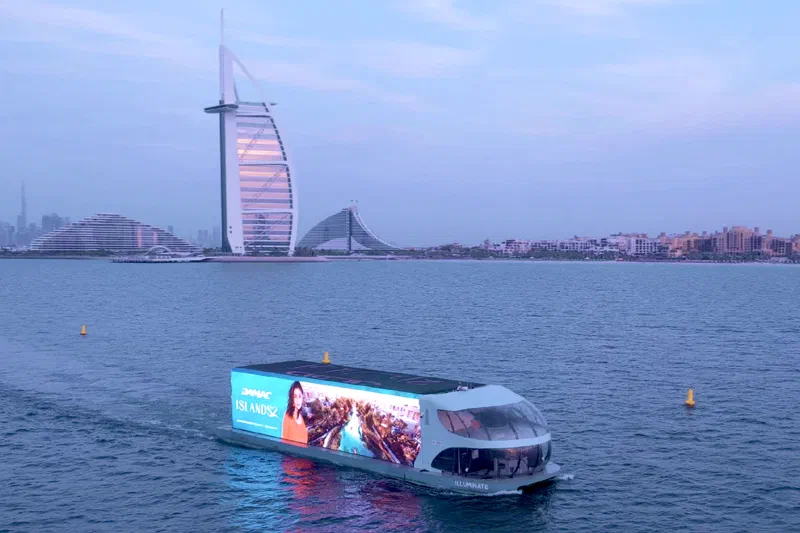
Blue Ad Advertising expanded its premium DOOH offer in Dubai with a network of Superformat digital screens on Sheikh Zayed Road, Hessa Street and Umm Suqeim. CS Play manages the content on these screens and on Illuminate, Blue Ad's vessel with 3D LED screens that cruises Dubai Creek, Palm Jumeirah and Dubai Marina.
Screens & playback hardware
Monitoring & diagnostics
Analytics & reporting
Other scenarios
Start a DOOH network on hardware you already own: PIN pairing, one ad for every resolution, and a default schedule that new screens pick up automatically.
ExploreContent that knows where the vehicle is: geofenced playback, GPS/GLONASS-aware creatives and offline resilience for screens that move.
ExploreMalls, retail and venue screens on CS Play: zoned layouts, fillers, event-triggered content and mass rollout across hundreds of screens.
ExploreMedia facades and LED screens on CS Play: budget Android controllers as full players, separate visible and physical resolution, NovaStar brightness control.
ExploreLarge networks on CS Play: silent fleet deployment, criteria targeting that reaches thousands of screens in one selection, role separation and an audit of who changed each campaign.
ExploreProgrammatic DOOH sales on CS Play: inventory passports SSPs can read, OTS from audience sensors, RTB and private deals, and unsold airtime offered to the CS Context auction.
ExploreSell airtime across several owners' networks on CS Play: scoped partner access, airtime quotas per screen group, and proof-of-play and photo reports per campaign.
Explore