roadside · city formats
Billboards & city formats
Roadside digital billboards on CS Play: scheduled brightness, competitive separation, playback forecasts that flag overbooking, and proof-of-play for remote sites.
ExploreEach screen’s settings live in your account, so a replacement box takes over from the broken one as soon as it is paired, and a new screen gets the schedule your network already runs. One ad carries a file for every screen size, and the first advertiser who asks what played gets a record.
The context
A network of a few screens is usually run by its owner, on whatever hardware was cheap. Generic tools keep the setup on the device itself, so every new screen and every replaced box is configured again on site, and every screen size needs its own copy of each ad. When the first advertiser asks what actually played, there is nothing to send.
01/04A box breaks, the screen's setup stays
“We have no engineer, so I handle the engineering myself”
A screen's resolution, frames, location and pairing belong to its player account in CS Play, not to the box. Install the player app on the box and pair it with a one-time code. When the box breaks, pair the replacement to the same player: the old box is signed out, and nothing has to be set up again.
A player in CS Play is the account of one playback device: its name, resolution, frames, geo-metadata, license slot, pairing credentials, online status and device information.
Player device accountsA newly created player account has no device attached. Pairing binds a physical device (running the player application) to the player account using a one-time PIN.
A player account holds exactly one device credential at a time. Pairing a new device with a fresh PIN moves the player identity to that device: the credential is rotated, and the previously paired device is signed out immediately.
This is the intended path for replacing broken hardware — create nothing, just pair the replacement device to the existing player.
Two-way PIN pairing0204
“A new screen gets the network's schedule the moment it is added”
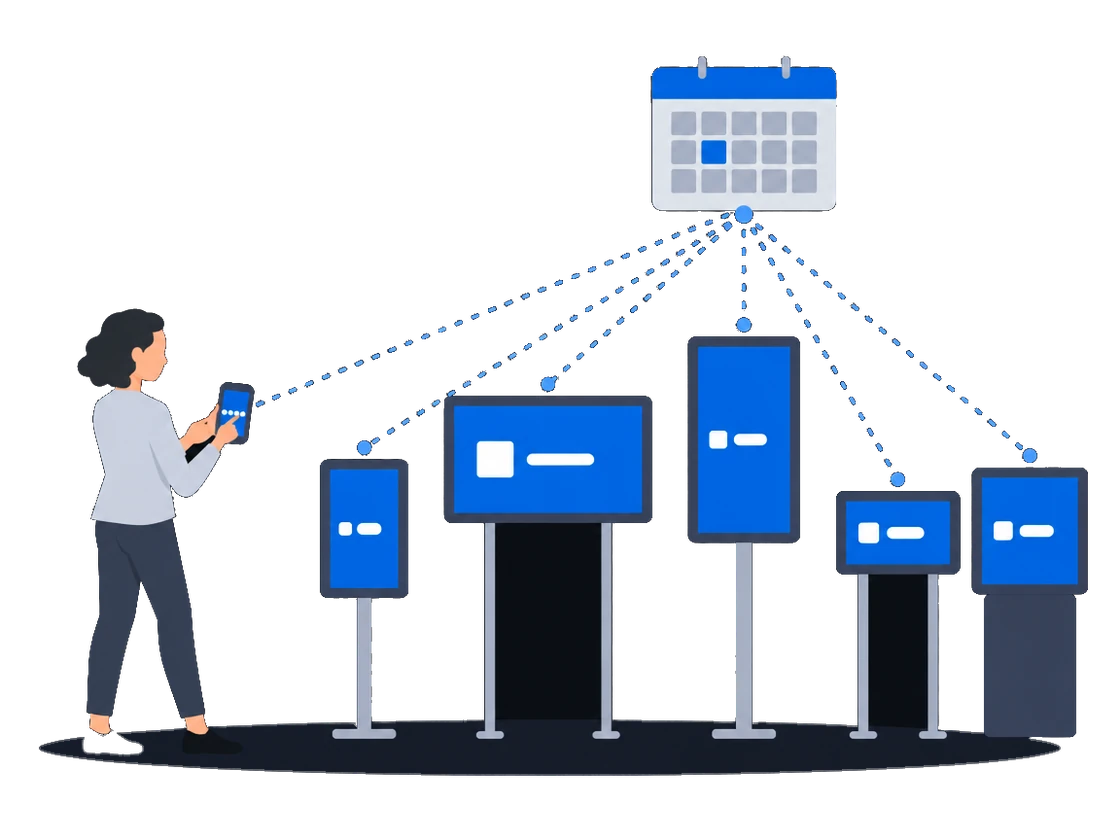
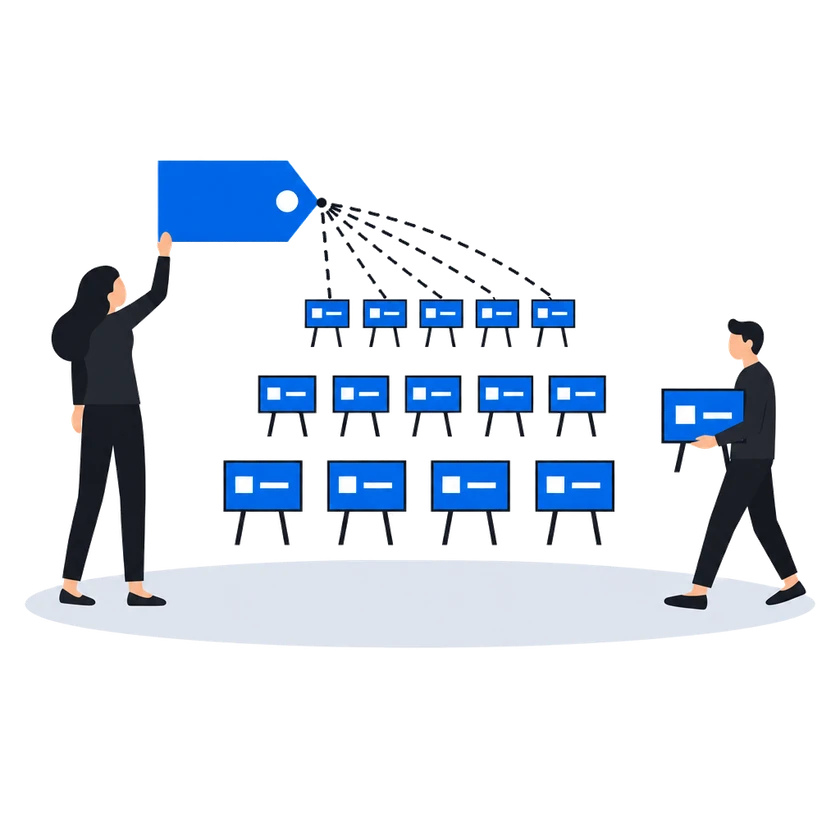
Mark one schedule as the default, and every screen you add gets it. With automatic scheduling, that one playlist and schedule serve every screen, and you change what plays by changing campaigns and ads. A campaign plays on the screens it targets, so add the new screen to the campaigns meant for it.
How it works, from the documentation
When enabled, the default schedule is automatically assigned to all new screens added to your account.
Default schedule for new screensIf you have many screens which play different content, it’s better to use automatic scheduling. This way you need only one playlist and one schedule to cover all the screens, and you never touch them again: to change what plays, you change the campaigns and ads, and the players pick up the changes automatically.
A single playlist for the whole networkTargeting determines which screens display your campaign’s ads. CS Play provides two methods: manual screen selection and automatic criteria-based matching.
Targeting by criteria“I upload one ad, and it plays right on every screen”
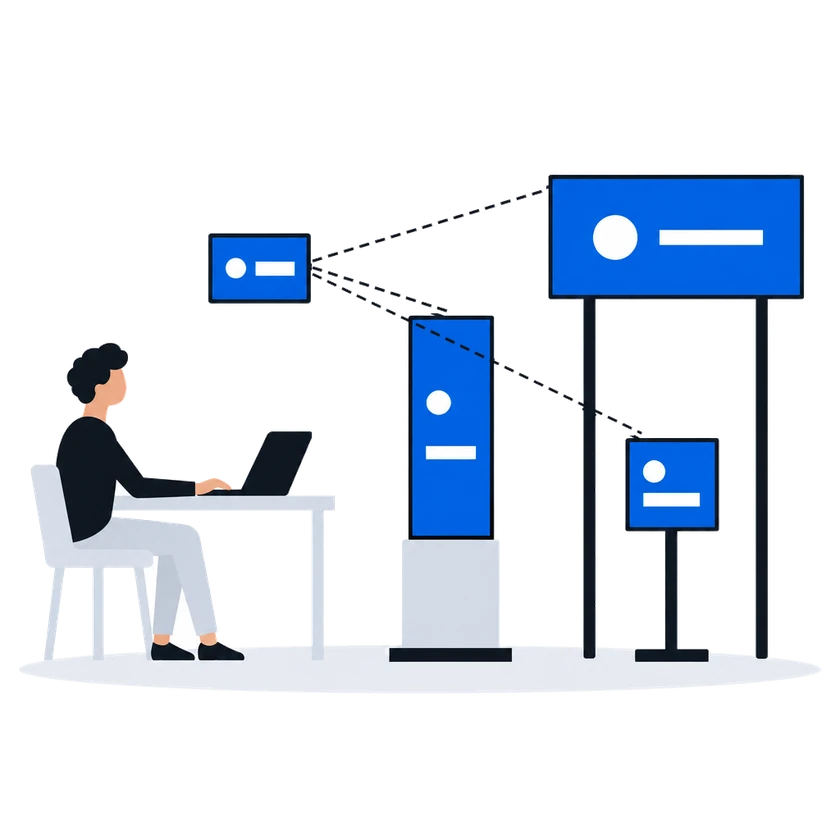
Put the versions of a creative made for different screen sizes into one ad. Each file goes to the screens with its resolution, and uploaded video is converted for playback before it reaches the player. A screen with no file bound to it does not play the ad, so check that every size you run has one.
How it works, from the documentation
If you want to play back the same media content on screens with different resolutions you have probably prepared files with different sizes to fit properly onto each screen. But you don’t need to create another ad for every size of the media file you have.You can upload all the media files of different sizes into one ad and bind them to corresponding screens.
The files automatically get attached to screens with corresponding resolutions.
Every screen will play back exactly the media content which is bound to the corresponding screen resolutions.
An ad will not be played back on a screen if no media content was bound to it in the Ratios and resolutions section.
Several resolutions in one adVideos uploaded in the CMS are automatically converted before they are sent to the player for playback. Videos are converted into a consistent format and scaled to the smallest available size while containing file proportions.
Server-side transcoding“My report shows the schedule, and the client wants what actually played”
What happens todayThe screen was dead all day and the report still shows full delivery
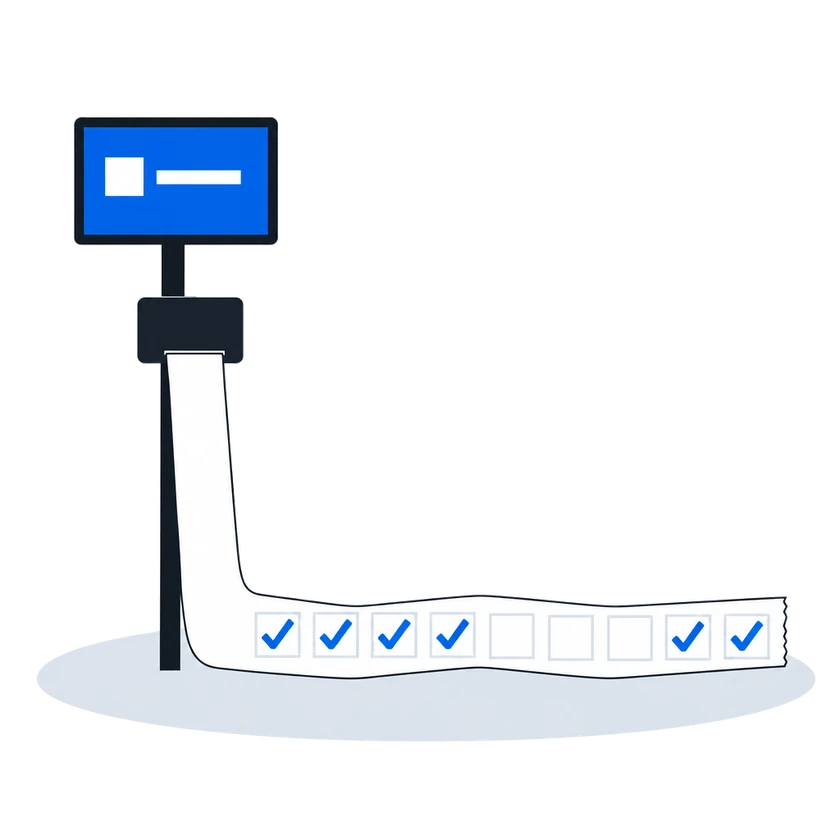
The player records every ad play with its time, screen, campaign and ad, so a player that stops playing leaves a gap instead of a full report. Export the record to a file, or send the advertiser a link to a live report that needs no account. Where an advertiser wants to see the screen itself, a camera adds photos.
How it works, from the documentation
CS Play generates proof of play from two independent sources:
Ad play log. Every ad play is recorded by the player application and reported to the server with a timestamp, screen, frame, campaign and ad. This log is the basis of Ad Play Statistics and statistics exports.
Photo captures. When a screen is equipped with an IP camera (CamGrabber), the system photographs the physical screen during ad playback — providing visual confirmation that the content appeared on the real installation. See Photo Captures.
Together, the ad play log and the photo captures form a complete proof-of-play package for client reporting and compliance.
Proof-of-play reportsYou can export ad play data to files for offline analysis, reporting, or sharing with clients. All exports use the same filters applied on the Ad Play Statistics page, so you always export exactly what you see.
Instead of exporting files, you can give an advertiser a live report page by a secret link — no CS Play account required.
Report exportBefore you start
What you doWhy, from the documentation
Create a player account for every box, then install the player app and pair it
Every playback device is represented by a player account:
After that the player is ready to receive content.
Two-way PIN pairingEvery active player consumes one player license from your organization’s pool:
Current usage is shown in Settings > Subscription as “Used X of Y, available Z”. To extend the pool, contact your CS Play provider.
License-metered playersBuild one playlist with an automatic slot and one schedule, and make that schedule the default
To create automatically updated playback:
Quoted in “New screens get the schedule you already run” above Default schedule for new screens
Install a camera only at the screens where an advertiser wants photos
Only the player is required. CamGrabber and audience sensors are installed at the screens where an advertiser has to be shown proof of play or an audience figure.
CS Play CamGrabber photo reportsPlaylists & scheduling
Targeting & audience
Content & creatives
Screens & playback hardware
Monitoring & diagnostics
Analytics & reporting
Monetization & partners
Access & administration
Other scenarios
Roadside digital billboards on CS Play: scheduled brightness, competitive separation, playback forecasts that flag overbooking, and proof-of-play for remote sites.
ExploreContent that knows where the vehicle is: geofenced playback, GPS/GLONASS-aware creatives and offline resilience for screens that move.
ExploreMalls, retail and venue screens on CS Play: zoned layouts, fillers, event-triggered content and mass rollout across hundreds of screens.
ExploreMedia facades and LED screens on CS Play: budget Android controllers as full players, separate visible and physical resolution, NovaStar brightness control.
ExploreLarge networks on CS Play: silent fleet deployment, criteria targeting that reaches thousands of screens in one selection, role separation and an audit of who changed each campaign.
ExploreProgrammatic DOOH sales on CS Play: inventory passports SSPs can read, OTS from audience sensors, RTB and private deals, and unsold airtime offered to the CS Context auction.
ExploreSell airtime across several owners' networks on CS Play: scoped partner access, airtime quotas per screen group, and proof-of-play and photo reports per campaign.
Explore