

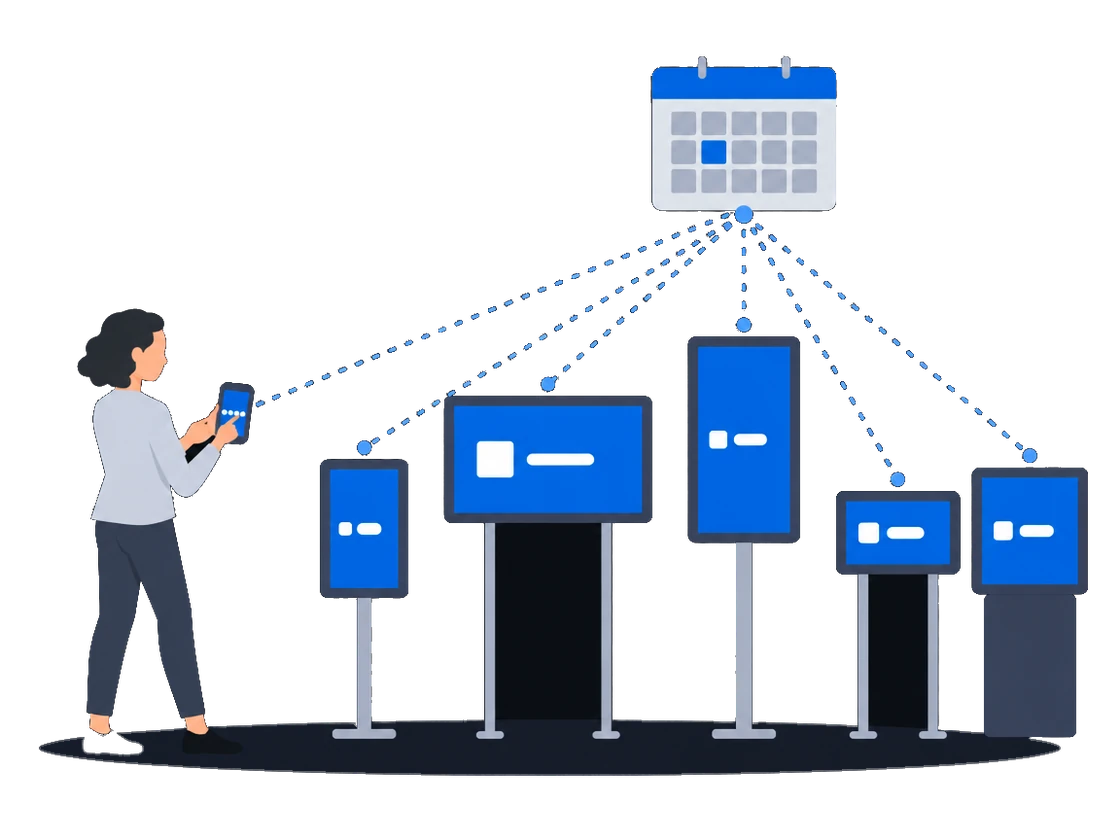
1–50 screens · starting out
First screens
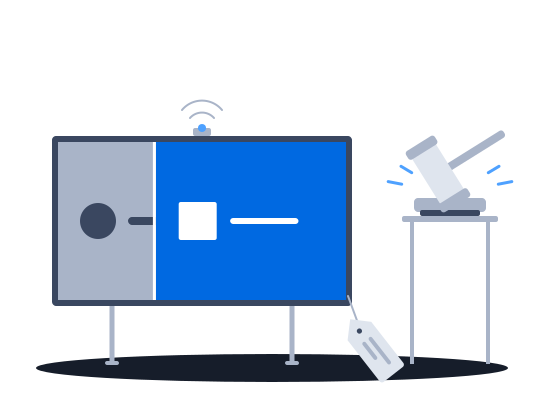
Start a DOOH network on hardware you already own: PIN pairing, one ad for every resolution, and a default schedule that new screens pick up automatically.
ExploreFrames split each screen into zones that play their own content, so campaigns buy the advertising zone and the venue’s content plays beside it. Time the sold campaigns leave empty plays your own ads instead of a black screen. One interactive ad shows each store its own content and is not stalled by a weak connection.
The context
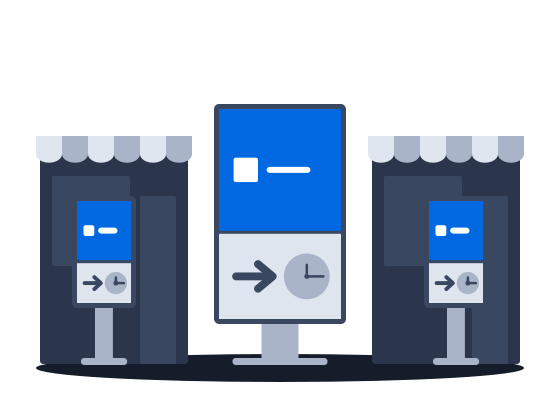
A mall or a store chain lets an operator put up screens only if the screens also serve its visitors with directions, offers or queues. A generic player runs one playlist across the whole screen, so the screen is either an ad panel or an information board, and every gap between ads goes black. Content that differs from store to store means another copy of every creative.
01/03Ads and the venue's content share one screen
“The venue will not allow pure advertising on the screen”
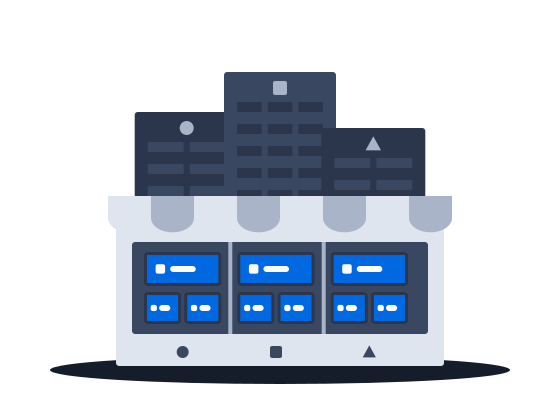
Split the player's output into frames: an advertising zone in one, the venue's own content, such as weather or a news ticker, in another. Each frame plays its own content and can belong to a screen of its own, so campaigns buy the advertising zone while the venue's content keeps playing beside it.
A frame is a rectangular content zone inside a player’s output. Each frame plays its own content, so one physical display can run an advertising zone, a weather widget and a news ticker at once.
A screen is the broadcast surface a campaign buys — one frame, or several frames combined into a composite. Criteria attached to a screen say what that surface is: the venue it stands in, the city, the format, the audience in front of it.
A player is the device — the media player driving one physical installation. One player can carry several frames, and those frames can belong to different screens, so the player and the screen it shows are two different objects, and each carries its own criteria.
Screen frames0203
“Between ads the screen goes black”
What happens todayEmpty slots show as a dead screen in front of visitors
A filler campaign fills the time your sold campaigns leave empty with your own ads, such as self-promotion, instead of showing nothing, and it does not interfere with the sold playback. A filler with no ads fills nothing, so give it ads before the gaps appear.
How it works, from the documentation
A filler is a type of campaign which automatically fills vacant timeslots in the playback with filler ads, i.e. self-promotions. It’s intended to display media content instead of displaying nothing (black screen) when the air time on screens is not filled up completely. Filler ads don’t interfere with the main playback.
If you don’t want to fill vacant timeslots with media content, just don’t create ads in the filler. When there are no filler ads, nothing will be played back on screens in vacant timeslots.
Filler campaigns“One creative adapts to every site on its own”
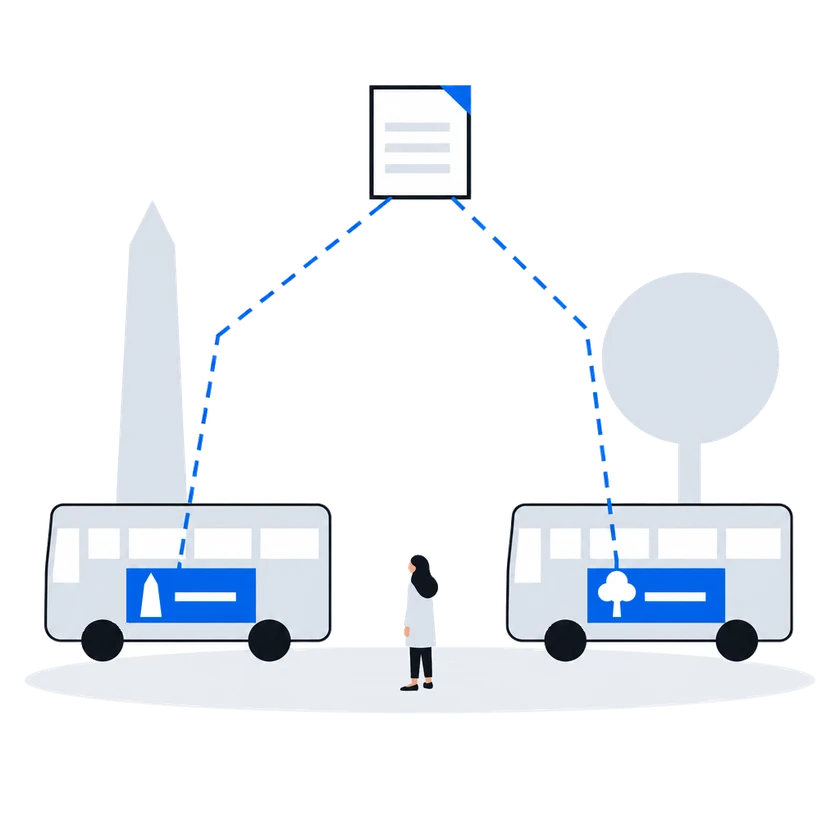
Program one interactive ad to show different content depending on the frame it plays in, instead of making an ad for each screen. Unlike a website, the ad is stored on the player, so a weak or lost connection does not affect it.
How it works, from the documentation
In HTML5 and websites you can play different content on different frames. And you don’t need to create several ads for different screens. You can create only one ad and program it to play different content depending on a frame. To do that you need to receive frame ID.
Interactive advertisementsAn HTML5 ad, unlike a website ad, is located on the player and is not affected by the Internet connection problems. A file of an HTML5 ad is a zip archive that should contain at least the index.html file.It can also contain any other files, such as javascript files, css files, videos, images and so on.
Before you start
What you doWhy, from the documentation
Set up the frames on one player, create the others as its duplicates, then give each its criteria
Duplicating a player copies its parameters and frame layout, but not criteria tags or metadata — assign those separately after creation.
Player duplicationPut your own ads in the filler and bind them to every screen size you want filled, because a filler without ads leaves unsold time empty
Quoted in “Unsold time plays your own content, not a black screen” above
To fill vacant timeslots on all screens bind files to all resolutions in the Content and resolutions section when creating filler ad.
Filler campaignsRun the playlists of those screens on the Adhere frequency policy, or use a filler by frequency campaign, because the simple filler fills gaps under no other policy
Simple fillers fill up empty timeslots only in playlists with Adhere frequency policy.
Fillers by frequency fill up empty timeslots in playlists with Adhere frequency, Exceed frequency and Decrease frequency policies.
Filler campaignsDefine a variable for what differs from store to store, attach it with each store's value to that store's screen, and have the interactive ad read it
Defining creates the variable in your organisation’s library: its key, its name, its type, and the kinds of entity it is allowed to attach to. It happens once, on the Variables page. A definition holds no value — it is a slot, not a setting.
Attaching takes a definition from that library and gives it a value on one particular entity: this campaign, this screen, this player. The button beside an entity’s variable table does this; it offers the definitions the library already holds, and asks for a value.
A variable is a named, typed value that the player resolves for the context an advertisement is playing in and hands to the creative, which reads it by key and decides what to do with it.
Custom variablesCustomers in this situation
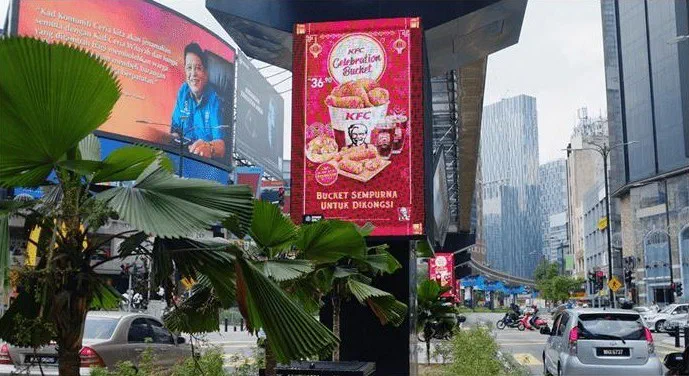
Big Tree, Malaysia's biggest digital out-of-home operator, plays video ads on its screens for more than 16 hours a day with CS Play and media players from CityScreen. It also uses CS Deals and CS Context.
 Illustration
L'Oréal Paris added interactive Lift & Learn counter displays to its shop-in-shop at Watson's in Johor Baru, with CS Play managing the content.
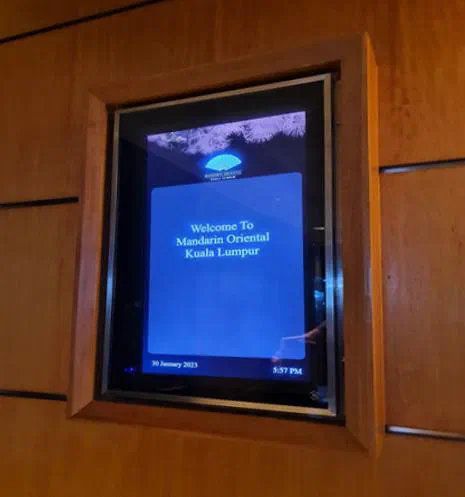
Mandarin Oriental in Malaysia runs the hotel's digital screens on CS Play, connected to the hotel's booking and event display system.
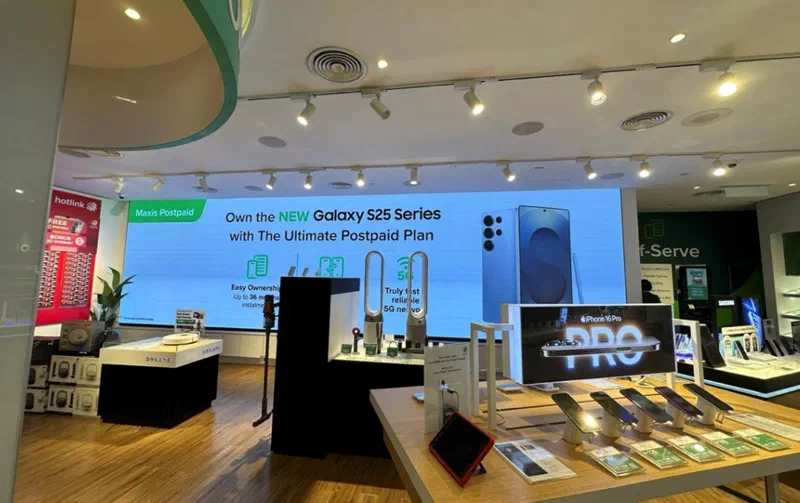
MAXIS, a Malaysian telecom company, manages the content of the digital screens, queue displays and LED installations in its 260 retail outlets from CS Play.
Playlists & scheduling
Content & creatives
Screens & playback hardware
Deployment & fleet ops
Other scenarios
Start a DOOH network on hardware you already own: PIN pairing, one ad for every resolution, and a default schedule that new screens pick up automatically.
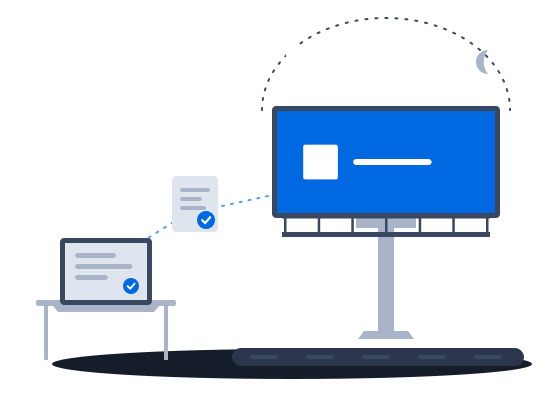
ExploreRoadside digital billboards on CS Play: scheduled brightness, competitive separation, playback forecasts that flag overbooking, and proof-of-play for remote sites.
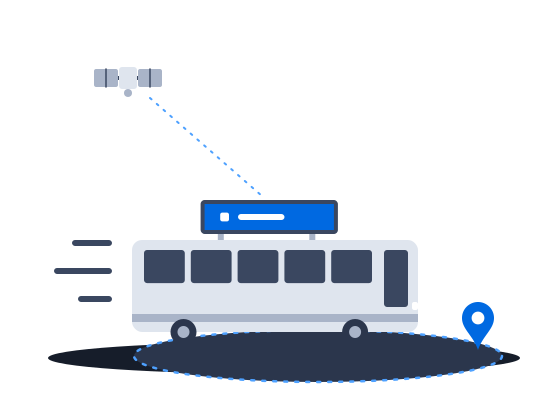
ExploreContent that knows where the vehicle is: geofenced playback, GPS/GLONASS-aware creatives and offline resilience for screens that move.
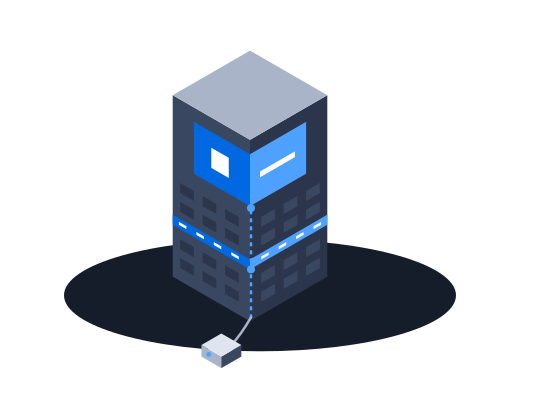
ExploreMedia facades and LED screens on CS Play: budget Android controllers as full players, separate visible and physical resolution, NovaStar brightness control.
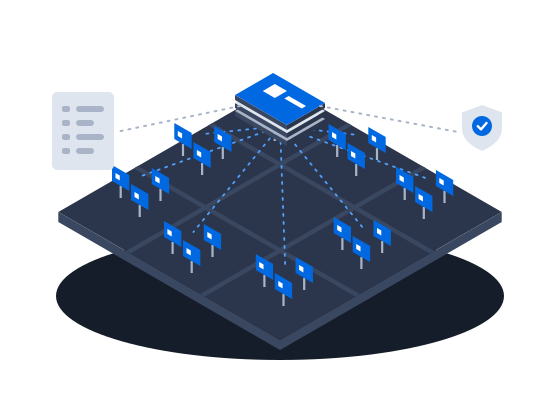
ExploreLarge networks on CS Play: silent fleet deployment, criteria targeting that reaches thousands of screens in one selection, role separation and an audit of who changed each campaign.
ExploreProgrammatic DOOH sales on CS Play: inventory passports SSPs can read, OTS from audience sensors, RTB and private deals, and unsold airtime offered to the CS Context auction.
ExploreSell airtime across several owners' networks on CS Play: scoped partner access, airtime quotas per screen group, and proof-of-play and photo reports per campaign.
Explore