1–50 screens · starting out
First screens
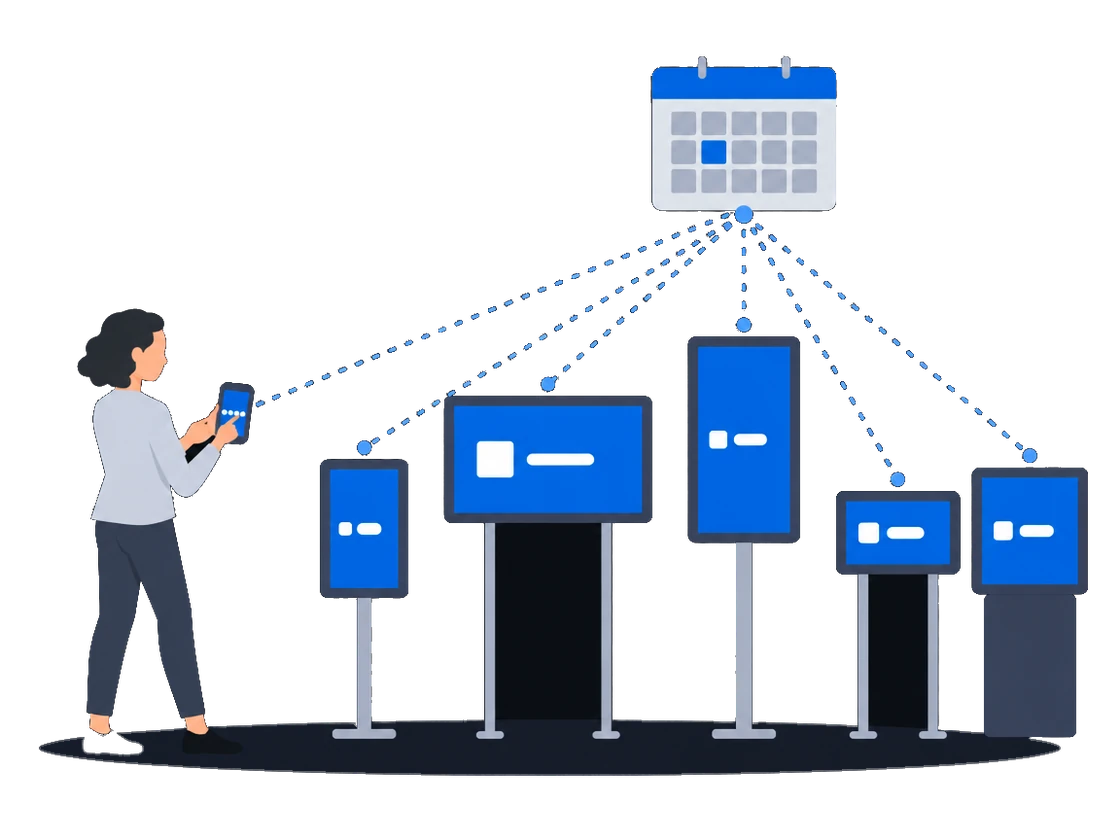
Start a DOOH network on hardware you already own: PIN pairing, one ad for every resolution, and a default schedule that new screens pick up automatically.
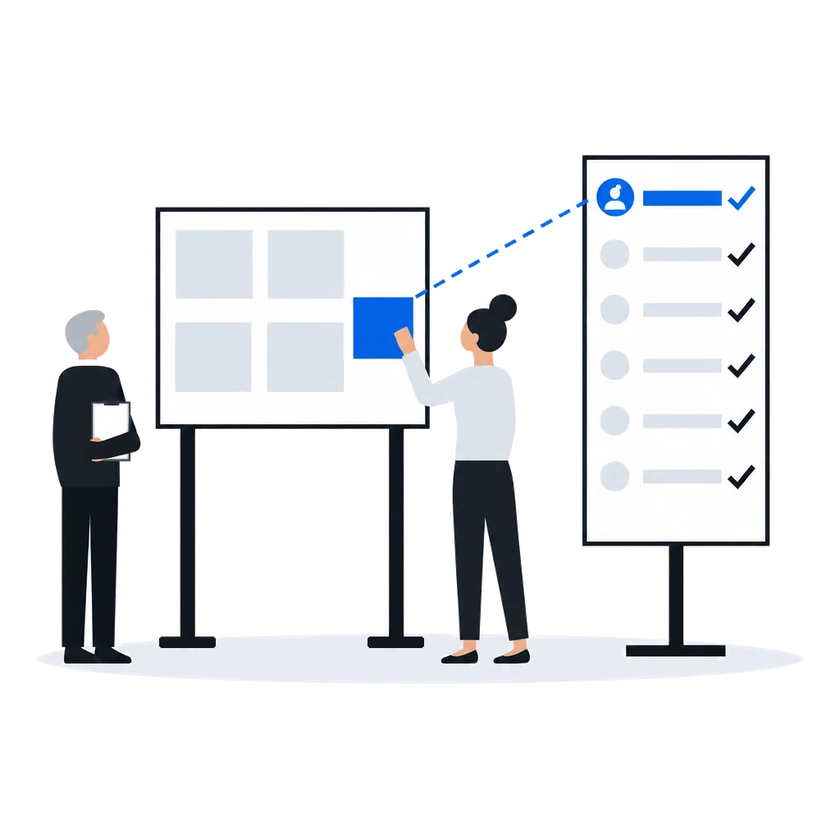
ExploreEach person works under their own login and role, a regional team sees only its own screens, and the events audit shows who changed a campaign and when. Campaigns pick screens by their criteria instead of one by one. A media plan in Excel becomes a batch of campaigns in one upload.
The context
Past a few hundred screens, a network is run by many people: regional teams, sales, the people who put campaigns on air. Generic tools give them one shared login, so when a campaign changes overnight nobody can tell who changed it. Screens are picked for each campaign one by one from a list of thousands, and the media plan that arrives in Excel is typed in by hand.
0203
“It stalled when we grew from 10 screens to 50”
What happens todayManual operations stop scaling
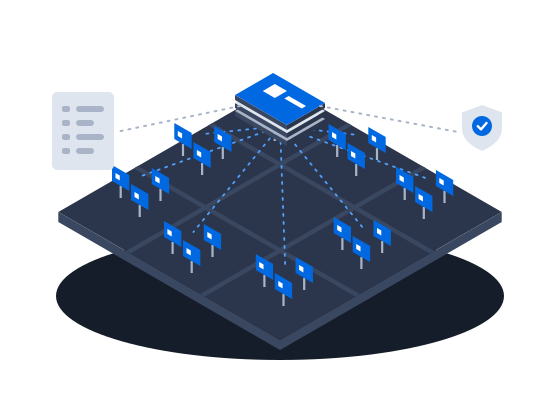
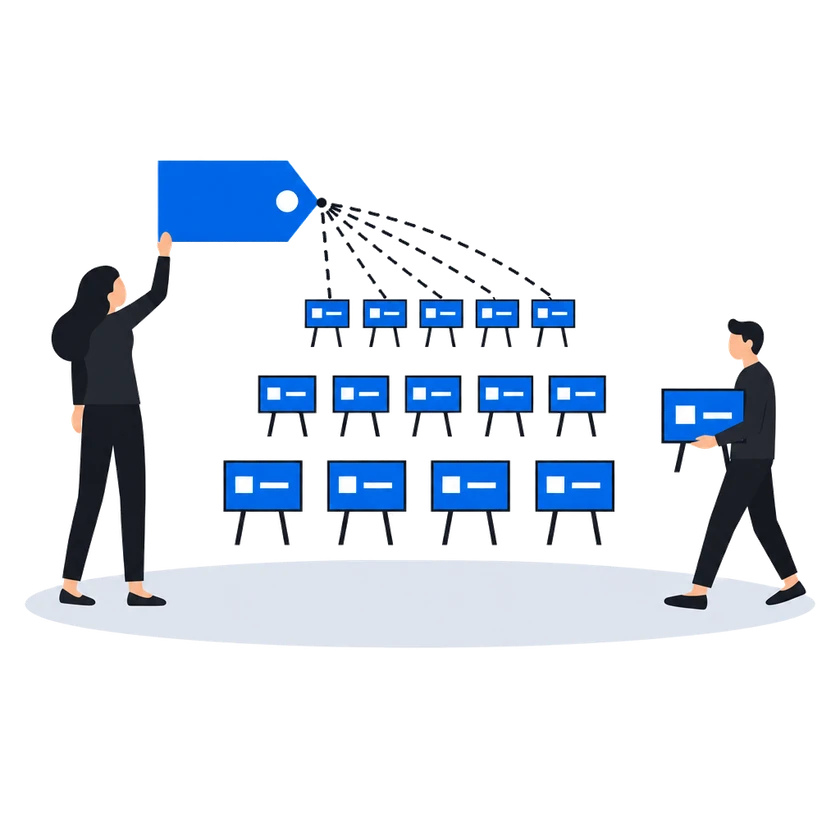
Give screens criteria once, such as the city, the format or the venue, and a campaign targets every screen whose criteria match instead of a hand-picked list. The campaign keeps the list of screens it was built with, so when new screens get the criteria, run the campaign's criteria step again to bring them in. Commands such as brightness, volume or reboot can go to every player with the criteria you name.
How it works, from the documentation
Criteria are metadata tags attached to players, screens and frames that enable campaign targeting. Instead of selecting individual screens for each campaign, you assign criteria once and then target all matching screens by their tags.
What happens to campaigns already targeting the screen: nothing, until you say so. A campaign stores the concrete list of screens it plays on together with a frequency for each; the criteria you used to build that list are not kept on the campaign. Attaching a criterion therefore does not pull the screen into a campaign that is already running, and detaching one does not remove it. To pick up new matches, open the campaign, run its By criteria step again and save.
Criteria attached to a player describe the hardware and its site: the model, the mounting, the branch, the service region. They are read where you act on devices rather than on airtime:
“The media plan lives in Excel, and I retype it into the system by hand”
What happens todayTransferring the plan takes days and breeds errors
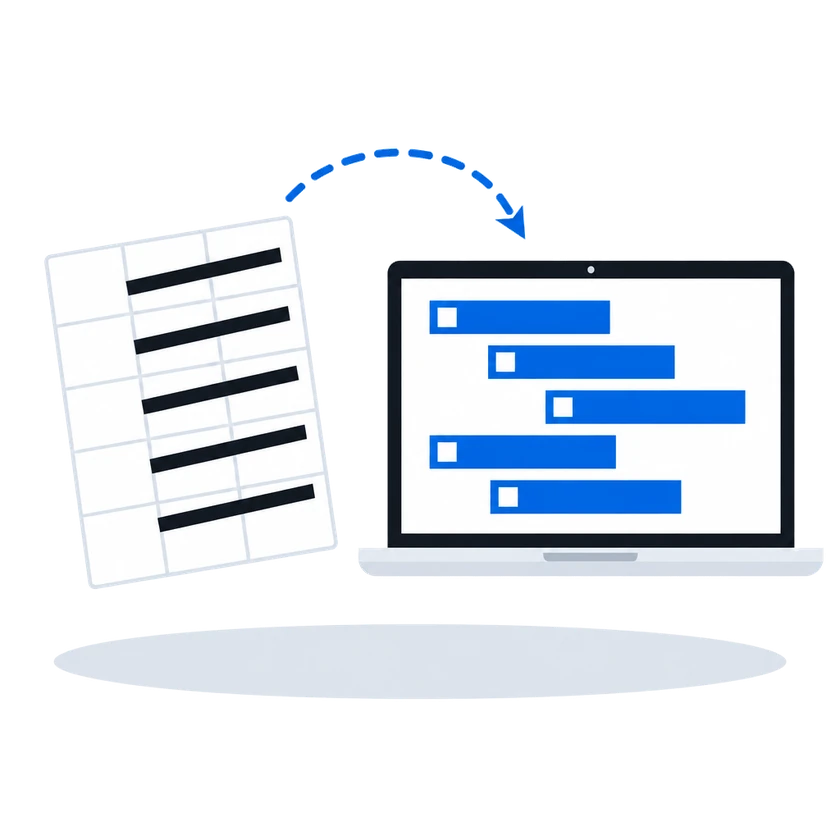
Upload the media plan as an Excel file with one row per campaign, giving its frames, dates, frequencies and media file names, and the wizard creates the whole batch as drafts in one placement. Frames or files it cannot find are listed before anything is created. Turn on the overbooking check to keep campaigns that would exceed the frequency as drafts, then activate the batch at once.
How it works, from the documentation
The Multiple campaigns wizard creates a batch of campaigns from an Excel file with a targeting program: one row per campaign with frame GIDs, dates, frequencies, and media file names.
The wizard reports how many campaigns were created. All of them are saved as drafts grouped into a placement (or Without placement if you chose so). Review the drafts and click Activate to launch them all.
If some data cannot be resolved, the wizard reports it before anything is created:
Fix the Excel file or upload the missing media, then re-upload.
Step 2: Creation:
Check for overbooking. When enabled, the wizard verifies that activating the new campaigns will not exceed the available frequency on the targeted frames. Campaigns that would cause overbooking are listed under List of campaigns with exceeding frequency and are left as drafts. The option is off by default, and the wizard remembers your choice.
Placements and mass creation from ExcelBefore you start
What you doWhy, from the documentation
Create the criteria you sell by, such as the city, the format or the venue, and give them to every screen
Criteria are managed on the dedicated Criteria page.
Run the criteria step of running campaigns again after you add screens, because a campaign keeps the screen list it was saved with
Create an account with its own role for every person, and limit the accounts of each regional team to its screen group
Give every screen a GID and name each media file exactly as your Excel plan does, because the wizard matches rows by GID and files by name
Open Screens, select the screen, and switch to the Settings tab. Fill in the GID field — the global identifier that external programmatic systems use to reference this screen’s frame. The same GID is used in Excel media plans for mass campaign creation.
Programmatic (RTB)Quoted in “The media plan goes in as an Excel file” above
Media files are matched by file name: the name of each uploaded file must exactly match the name written in the Excel file. Files already present in the media library are matched the same way.
Placements and mass creation from ExcelCustomers in this situation
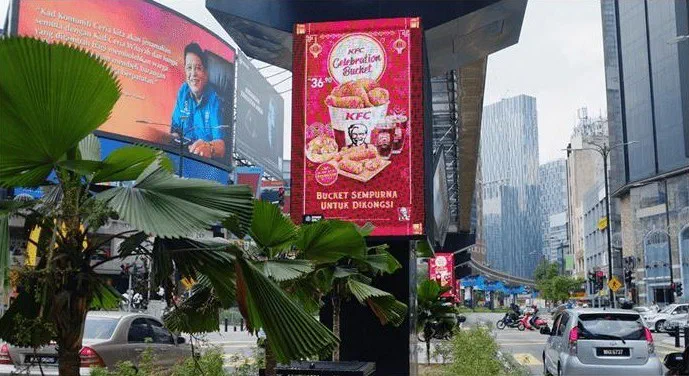
Big Tree, Malaysia's biggest digital out-of-home operator, plays video ads on its screens for more than 16 hours a day with CS Play and media players from CityScreen. It also uses CS Deals and CS Context.
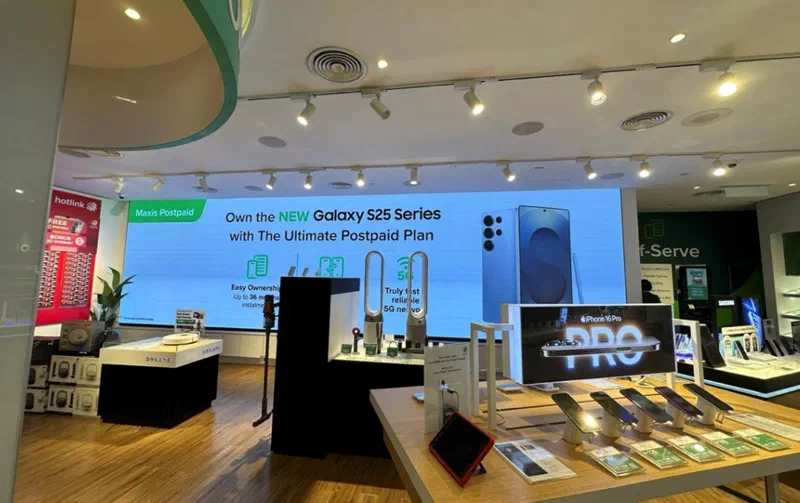
MAXIS, a Malaysian telecom company, manages the content of the digital screens, queue displays and LED installations in its 260 retail outlets from CS Play.
Campaign planning & automation
Targeting & audience
Monitoring & diagnostics
Monetization & partners
Access & administration
Other scenarios
Start a DOOH network on hardware you already own: PIN pairing, one ad for every resolution, and a default schedule that new screens pick up automatically.
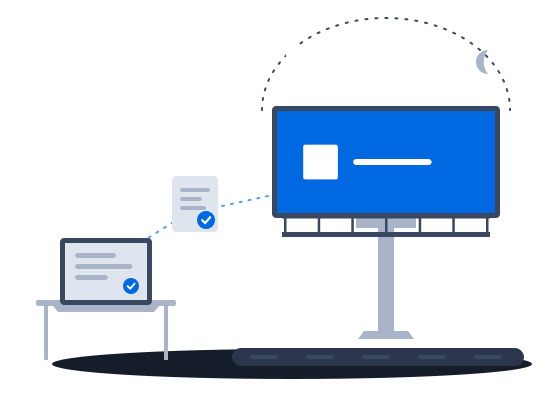
ExploreRoadside digital billboards on CS Play: scheduled brightness, competitive separation, playback forecasts that flag overbooking, and proof-of-play for remote sites.
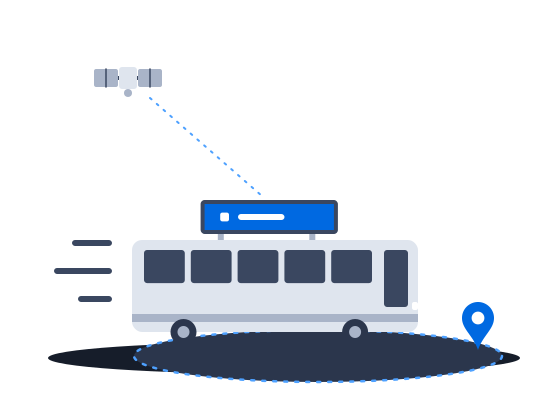
ExploreContent that knows where the vehicle is: geofenced playback, GPS/GLONASS-aware creatives and offline resilience for screens that move.
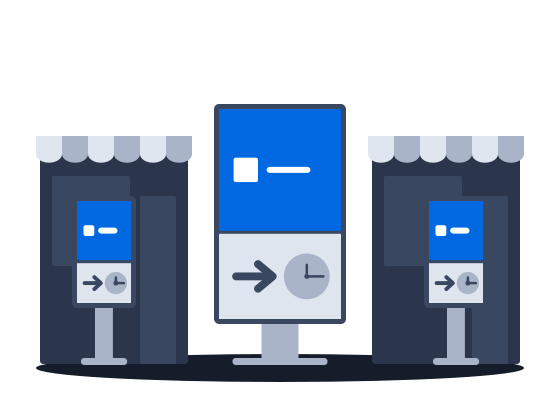
ExploreMalls, retail and venue screens on CS Play: zoned layouts, fillers, event-triggered content and mass rollout across hundreds of screens.
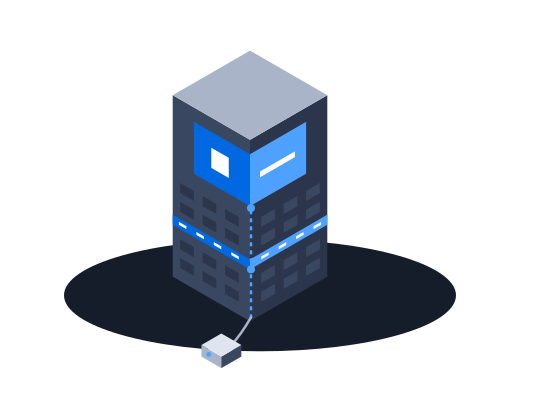
ExploreMedia facades and LED screens on CS Play: budget Android controllers as full players, separate visible and physical resolution, NovaStar brightness control.
ExploreProgrammatic DOOH sales on CS Play: inventory passports SSPs can read, OTS from audience sensors, RTB and private deals, and unsold airtime offered to the CS Context auction.
ExploreSell airtime across several owners' networks on CS Play: scoped partner access, airtime quotas per screen group, and proof-of-play and photo reports per campaign.
Explore