1–50 screens · starting out
First screens
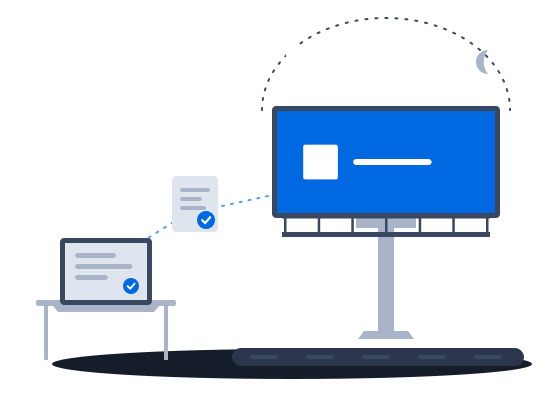
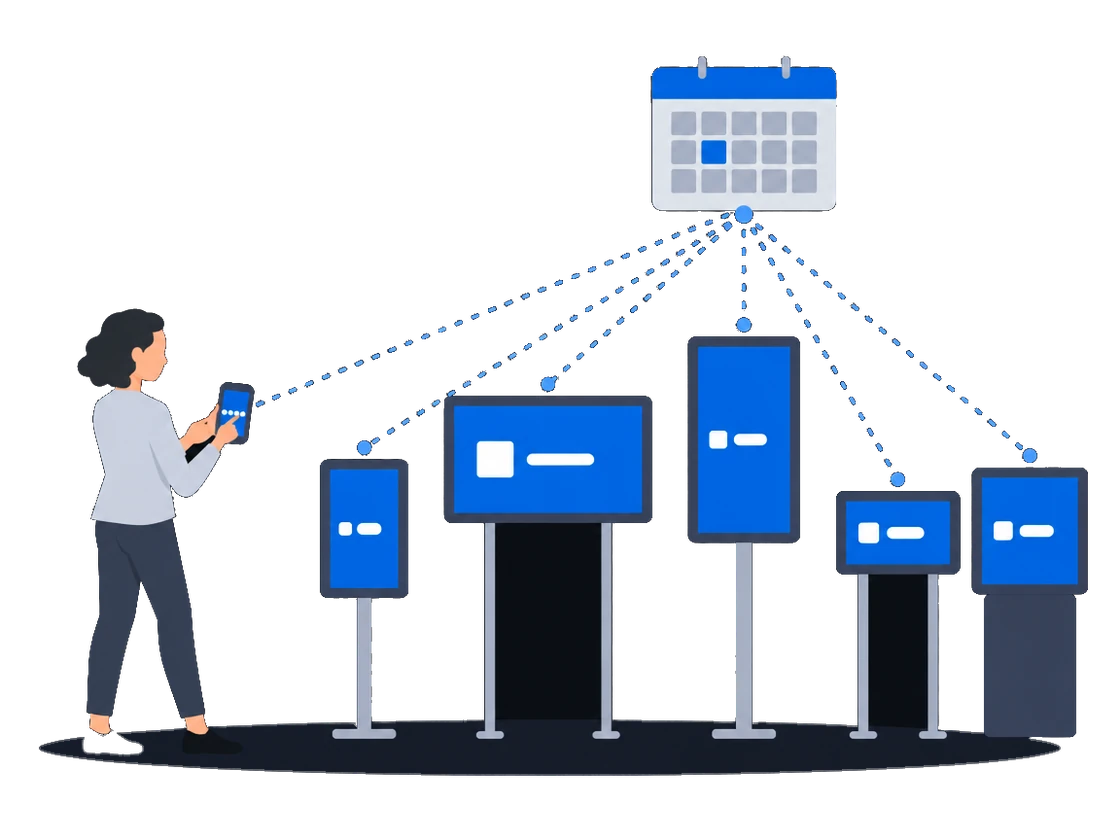
Start a DOOH network on hardware you already own: PIN pairing, one ad for every resolution, and a default schedule that new screens pick up automatically.
ExplorePanels driven by different players change at the same instant, so a facade built on several controllers runs as one screen. Brightness follows the time of day and can go through the NovaStar controller instead of darkening the picture. A panel that goes dark while its player stays online shows up in the camera photos.
The context
Large LED facades are often built from several panels, each with its own controller and player. Generic tools treat every player as a separate screen, so the panels drift out of step and the facade cannot be sold as one surface. Dimming the picture in software can distort LED colours, and a panel that has gone dark looks healthy from the office while its player keeps checking in.
01/03Panels on different players change at the same instant
“We sell the whole facade as one surface, because it now changes like one”
Combine the panels into one composite screen: each panel keeps its own player, and the primary one decides when every ad starts and ends, so the whole wall changes at the same instant. CS Play does not cut one big picture into pieces, so the advertiser uploads a file for every panel. Put the players of a wall on a network where they can reach each other, or they will not stay in sync.
A composite screen is a video wall: several physical panels arranged in a grid so that together they show one large picture. Each panel runs its own player, one of them keeps time for the rest, and the creative reaches each panel as a file of its own.
The primary frame is the clock source. It decides when a spot starts and ends, so that transitions happen at the same instant across the whole wall.
CS Play does not cut one big picture into panels. An advertisement carries a separate media file for every grid position, and the advertiser uploads them as a set.
The panels of a video wall must be able to reach each other over the network. If they sit in isolated subnets, or a firewall stands between them, they will not hold sync no matter how healthy each player’s connection to CS Play is.
Video walls0203
“To dim the screen at dusk I type dozens of brightness entries by hand”
What happens todayBrightness is set entry by entry, and one wrong entry leaves a screen black while its player keeps working
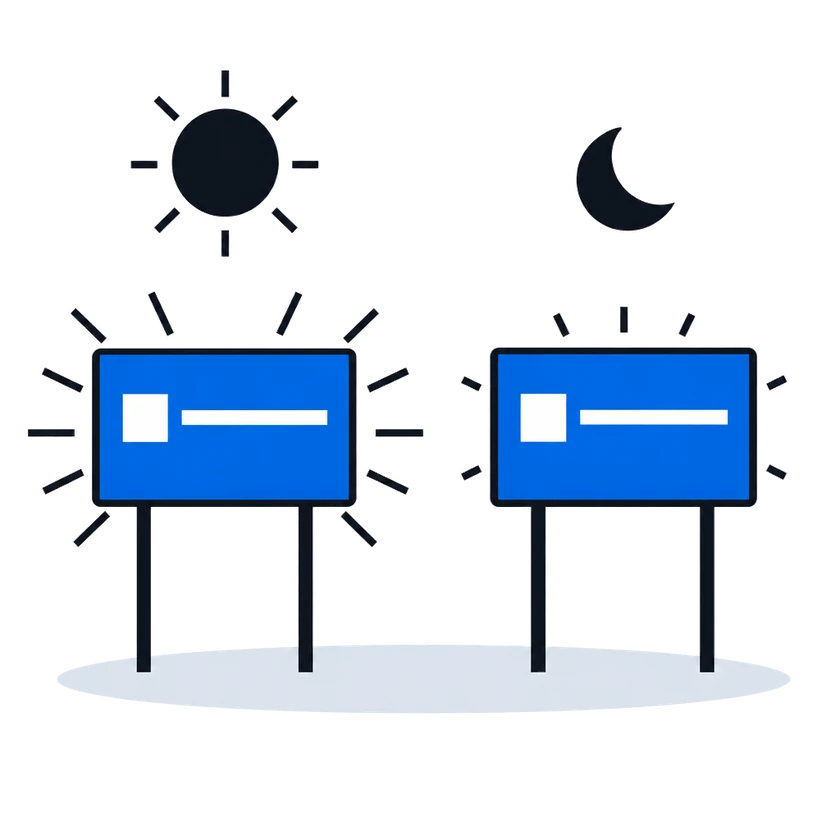
Enter when sunrise and sunset begin and how bright the screen should be by day and by night, and the brightness steps between them are generated for you. The setting lives in a settings policy, so every screen whose player has that policy follows it. Dimming in software can distort the colours of an LED screen, so a screen with a NovaStar controller can take its brightness through the controller instead.
How it works, from the documentation
Instead of entering schedule steps manually, generate a smooth day/night curve. Click Sunrise/Sunset and define:
Brightness is configured in the Brightness settings section of a player settings policy and applies to every player the policy is assigned to.
Scheduled brightnessSoftware dimming can distort color rendering on LED screens — this is a property of how LED diodes work. For LED installations prefer a hardware controller.
In NovaStar brightness mode, the player drives an LED screen’s brightness through a NovaStar controller attached to the player device over a serial port. Select the Device model and enter the serial Port name; the baud rate is set automatically for the chosen model.
NovaStar LED brightness control“A screen was black for 3 days and we heard it from the client”
What happens todayNo signal that a device dropped out
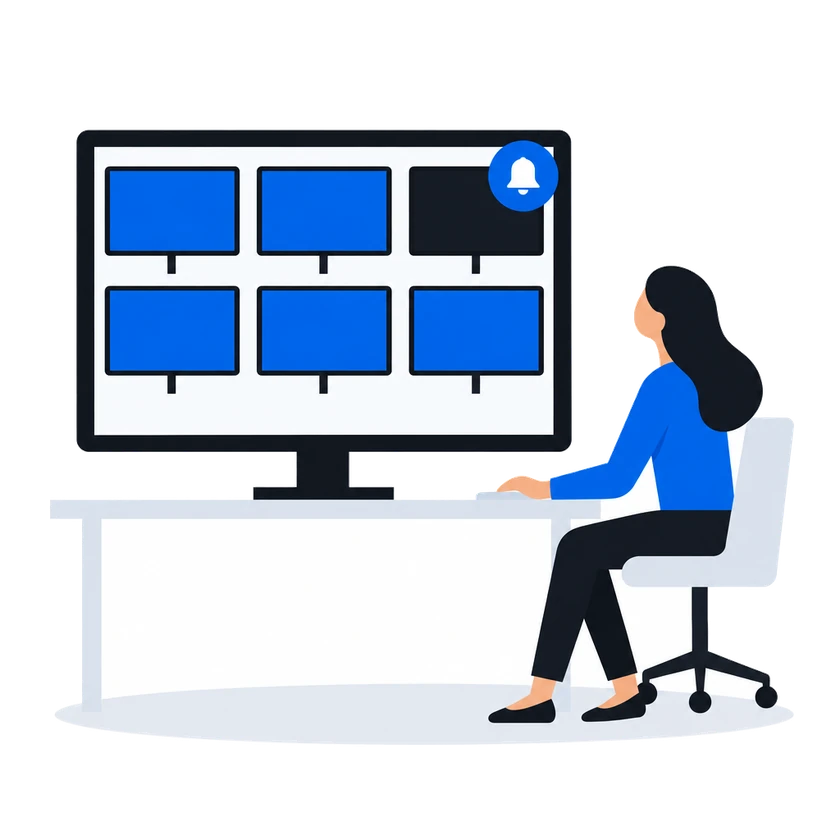
Nothing alerts you when a screen goes black while its player stays online: the offline email comes only when a player drops off the network. Two things show a dark screen instead: the time of the last ad play gives away a player that has stopped playing, and a camera photo shows whether the screen itself is working and can be seen. New administrators get the offline email from the start.
How it works, from the documentation
Last seen online is a heartbeat and nothing else. The player application pings the server on its own schedule; this timestamp holds the moment the last ping arrived. A player with an empty playlist, a half-finished content download or a dead LED panel goes on pinging exactly as before, so a fresh timestamp proves the device is reachable — not that anything reached the screen.
To find out what the player actually played, use the Last playback column of the players list and Ad Play Statistics. Contact and playback are independent facts and are recorded separately.
Device state visibilityPhoto Captures is a gallery of photos taken by CamGrabber camera devices — real photographs of the physical screens captured while ads play. Use photo captures to verify that content is playing correctly, that screens are operational, and that they are visible and unobstructed.
Screen photo capturePlayer online/offline events support per-user delivery preferences. In the user profile, each user can independently toggle:
New administrator accounts are auto-subscribed to player-offline email notifications by default.
Email alertsBefore you start
What you doWhy, from the documentation
Keep every player of a wall on a current version and on a network where the players reach each other, because they keep time between themselves
Quoted in “Every panel of the wall changes at the same instant” above
Video walls require a current version of the player application. A player on an older version receives no composite content.
Video wallsHave the advertiser cut each creative into a file for every panel, sized to that panel, because CS Play does not cut the picture
Quoted in “Every panel of the wall changes at the same instant” above
An advertisement targeted at a composite screen carries one media file per grid position. Each file is matched against the resolution of the frame standing at that position, so a wall of panels with different resolutions needs parts cut to different sizes.
Video wallsConnect a supported NovaStar controller to each player over a serial port, then pick its model and port in the brightness settings of the player settings policy
Quoted in “The screen dims at dusk and brightens at dawn by itself” above
Supported controller models:
Put a camera at each facade you need to watch, register it on the player it films and give it a paid licence
A CamGrabber device is registered on the player it films: Players > select the player > CamGrabber tab (administrator and partner accounts only).
The device receives its credential and starts uploading photos. Photos survive network outages — the device queues them locally and retries.
A CamGrabber licence is attached to one grabber device, not to a screen and not to a player. It is what decides whose campaigns that device may photograph:
Free. The device photographs only platform programmatic campaigns. Your own campaigns are refused. Free devices do not draw on the paid pool.
Paid. The device photographs your organization’s own campaigns, honours the photo-report schedule and the per-ad shot counter, and can be put under a campaign’s full-coverage setting. It takes one licence out of the organization’s paid pool for as long as it holds it.
CS Play CamGrabber photo reportsCustomers in this situation
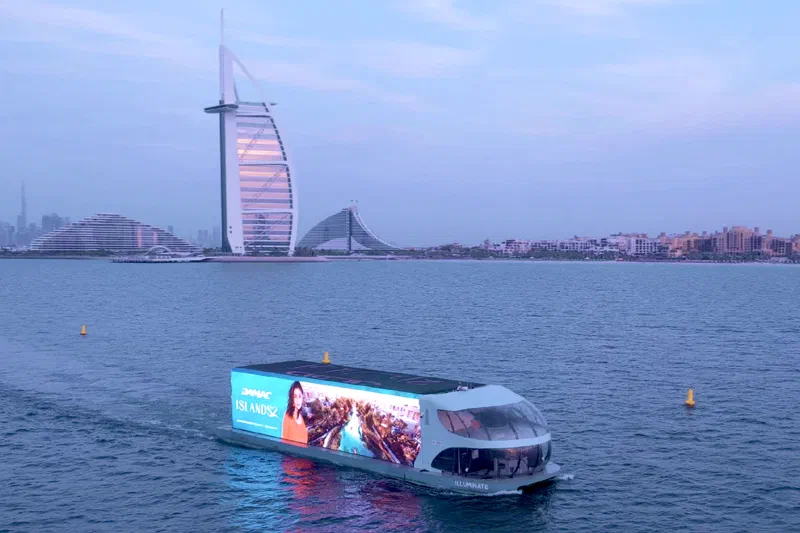
Blue Ad Advertising expanded its premium DOOH offer in Dubai with a network of Superformat digital screens on Sheikh Zayed Road, Hessa Street and Umm Suqeim. CS Play manages the content on these screens and on Illuminate, Blue Ad's vessel with 3D LED screens that cruises Dubai Creek, Palm Jumeirah and Dubai Marina.
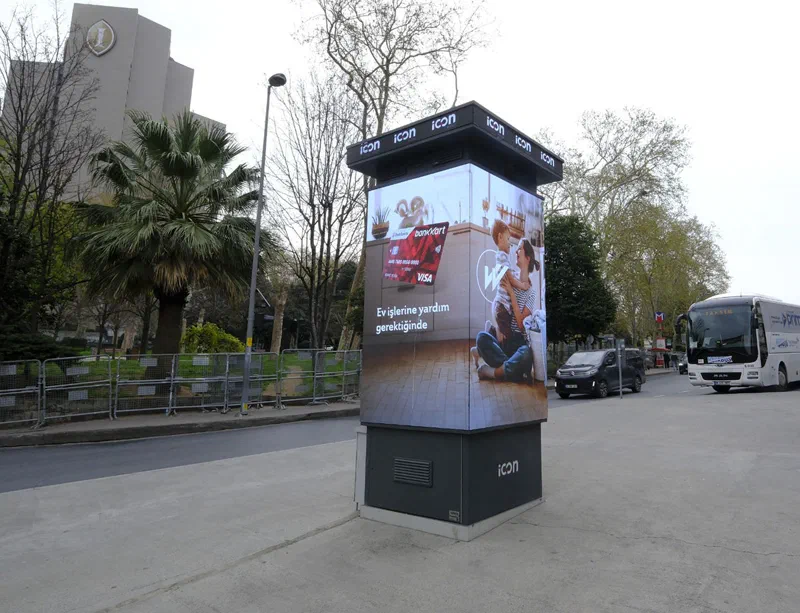
Icon DOOH, the digital out-of-home brand of Birlik Medya, runs the LED towers at its 40 sites in Istanbul on CS Play. CS Play AIdiencer cameras count the audience at the screens. Icon DOOH has run Adform campaigns through CS Context on a CPM basis using these counts, and the same counts give its classic campaigns OTS figures in CS EdgeInsights.
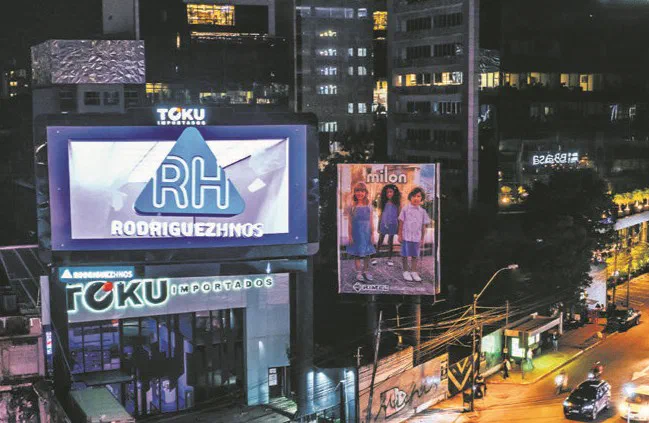
RH Rodríguez Hermanos, one of Paraguay's most prominent OOH media companies, connected its curved LED screen in central Asunción to CS Play. It was CityScreen Latam's first technology rollout in Paraguay.
Screens & playback hardware
Monitoring & diagnostics
Other scenarios
Start a DOOH network on hardware you already own: PIN pairing, one ad for every resolution, and a default schedule that new screens pick up automatically.
ExploreRoadside digital billboards on CS Play: scheduled brightness, competitive separation, playback forecasts that flag overbooking, and proof-of-play for remote sites.
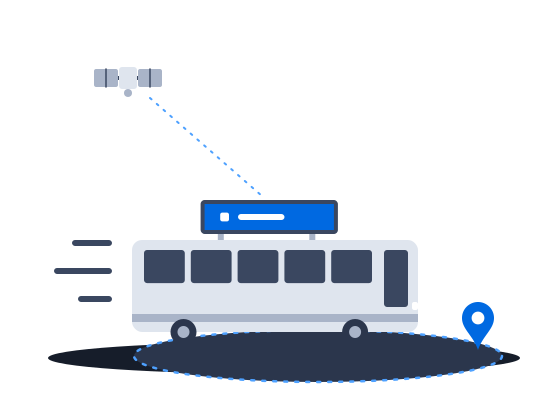
ExploreContent that knows where the vehicle is: geofenced playback, GPS/GLONASS-aware creatives and offline resilience for screens that move.
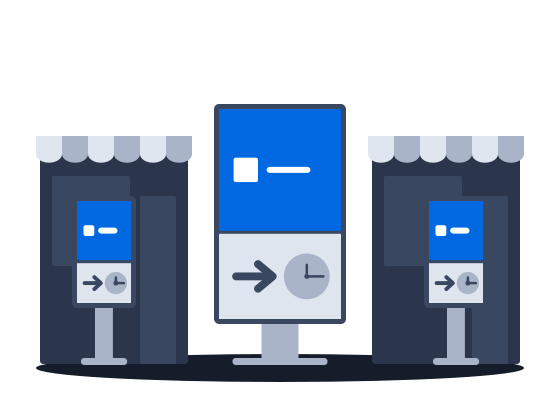
ExploreMalls, retail and venue screens on CS Play: zoned layouts, fillers, event-triggered content and mass rollout across hundreds of screens.
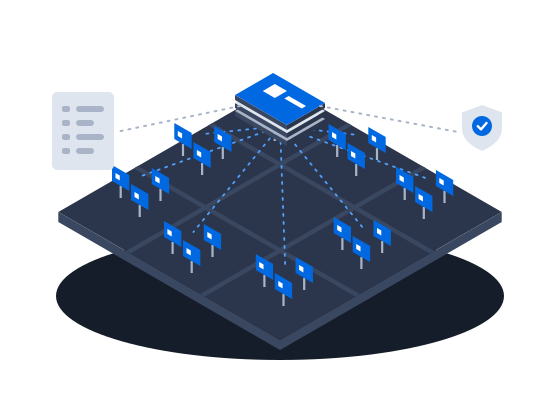
ExploreLarge networks on CS Play: silent fleet deployment, criteria targeting that reaches thousands of screens in one selection, role separation and an audit of who changed each campaign.
ExploreProgrammatic DOOH sales on CS Play: inventory passports SSPs can read, OTS from audience sensors, RTB and private deals, and unsold airtime offered to the CS Context auction.
ExploreSell airtime across several owners' networks on CS Play: scoped partner access, airtime quotas per screen group, and proof-of-play and photo reports per campaign.
Explore