
hundreds+ · multi-city
Large networks
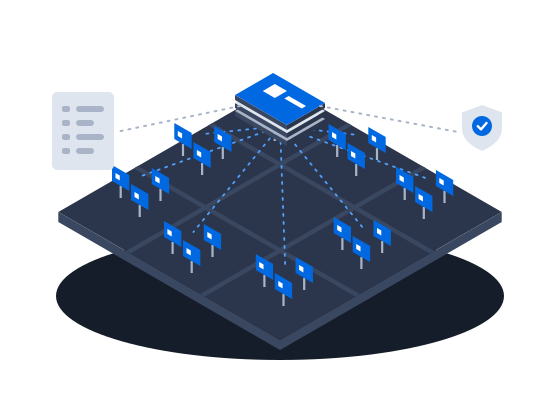
Large networks on CS Play: silent fleet deployment, criteria targeting that reaches thousands of screens in one selection, role separation and an audit of who changed each campaign.
ExploreEach owner logs in to their own screens and campaigns. A quota on the schedule caps how many seconds of every ad block each owner’s group may book, so one owner cannot fill the whole block on the screens they share. A media plan in Excel becomes a batch of campaigns in one upload.
The context
A sales house sells the screens of several owners, and generic tools leave it two bad choices: hand each owner the whole account, or run the owner’s screens for them. Airtime goes to whoever books first, so one seller can fill a block the owner counted on, and media plans from agencies arrive as spreadsheets to be typed in.
01/03Each owner works only with their own screens
“I need to give each screen owner or partner access to their own screens only”
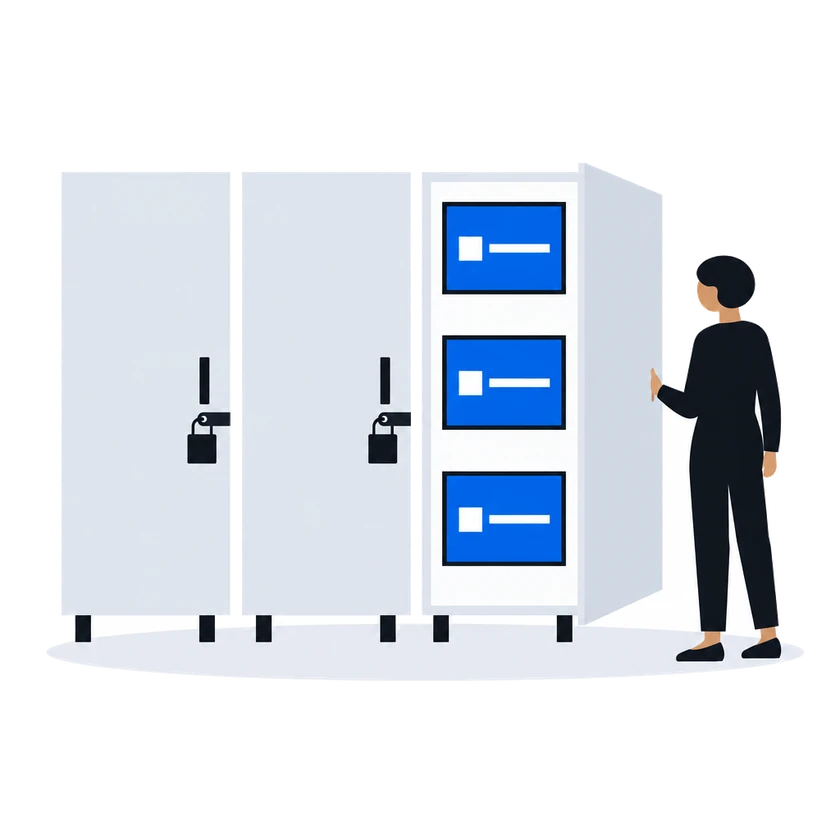
Put each owner's screens into a screen group of their own and bind the owner's account to it. The owner then sees only the screens and campaigns of that group and cannot reach anything outside it. With the Advertising Manager role, the owner runs campaigns, ads and media files inside the group. A group-limited account cannot create users, so an administrator outside the group adds the owner's team.
Create a screen group for the partner and move their screens into it. The group is the boundary of everything that follows: the partner’s account, their campaigns, and their airtime quota all attach to this group.
Partner networkUser accounts can be restricted to specific screen groups. A group-scoped user:
Give the partner’s account the Advertising Manager role: inside its group it can create and run campaigns, ads and media library files. A group-scoped account cannot create users, so if the partner needs a team, an administrator who is not restricted to a group adds each account to the partner’s group.
Partner network0203
“Two of us sell the same screens, and whoever books first takes the airtime”
What happens todayOne seller fills the ad block, and the other has nothing left to sell on the screens they share
Give each owner's group a quota on the schedule, in seconds of every ad block. The group's users cannot activate campaigns beyond it, and a group without its own quota takes the quota of its nearest parent group. A quota limits a group and reserves nothing: users who belong to no group are never limited, so when several owners share screens, each one sells from its own group.
How it works, from the documentation
A quota sets how many seconds of the ad block the users of a screen group may book — for example, when two sales houses share the same screens, each working from its own group. A quota limits a group; it does not reserve airtime for it. Without quotas, airtime goes to whoever books it first.
Quota rules:
“The media plan lives in Excel, and I retype it into the system by hand”
What happens todayTransferring the plan takes days and breeds errors
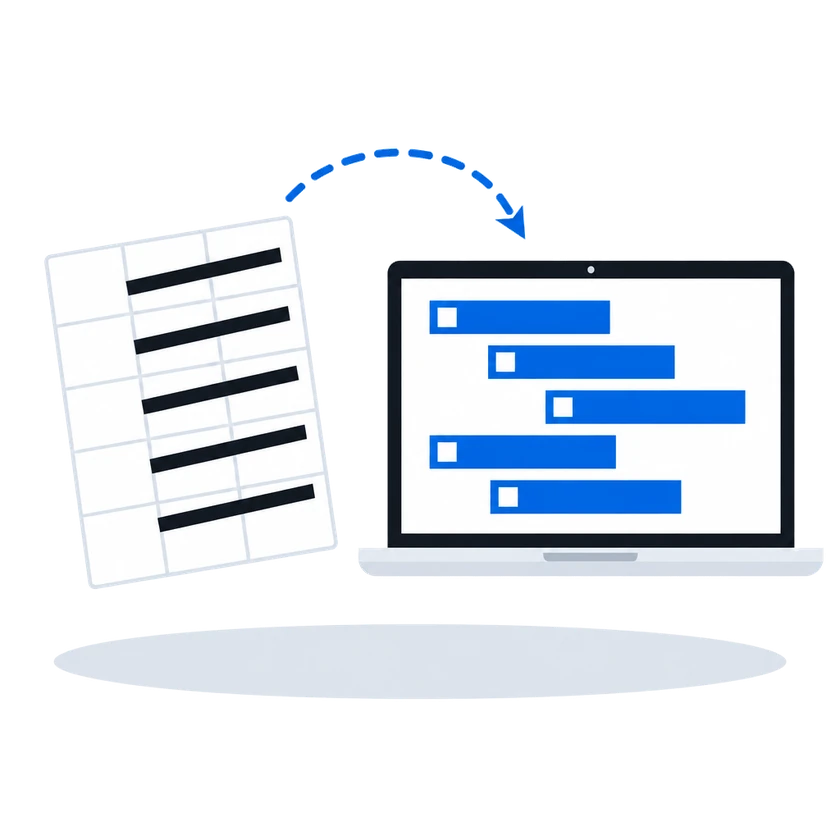
Upload the media plan as an Excel file with one row per campaign, giving its frames, dates, frequencies and media file names, and the wizard creates the whole batch as drafts in one placement. Frames or files it cannot find are listed before anything is created. Turn on the overbooking check to keep campaigns that would exceed the frequency as drafts, then activate the batch at once.
How it works, from the documentation
The Multiple campaigns wizard creates a batch of campaigns from an Excel file with a targeting program: one row per campaign with frame GIDs, dates, frequencies, and media file names.
The wizard reports how many campaigns were created. All of them are saved as drafts grouped into a placement (or Without placement if you chose so). Review the drafts and click Activate to launch them all.
If some data cannot be resolved, the wizard reports it before anything is created:
Fix the Excel file or upload the missing media, then re-upload.
Step 2: Creation:
Check for overbooking. When enabled, the wizard verifies that activating the new campaigns will not exceed the available frequency on the targeted frames. Campaigns that would cause overbooking are listed under List of campaigns with exceeding frequency and are left as drafts. The option is off by default, and the wizard remembers your choice.
Placements and mass creation from ExcelBefore you start
What you doWhy, from the documentation
Create a screen group for each owner and move their screens into it, because the owner's account, campaigns and quota all attach to that group
Give each owner an account limited to their group, with the Advertising Manager role, and add the owner's team yourself, because an account limited to a group cannot create users
Set the quota of each owner's group in seconds of the ad block: at least one standard slot, no longer than the block and a multiple of the standard slot, with all quotas fitting in the block together
Quoted in “Each owner's group books no more than its quota of every ad block” above
Quotas are expressed in seconds of block duration, not percentages. Size them against the total block length you configured for the schedule: a quota cannot be longer than the block, and CS Play refuses to save quotas that together add up to more than the block.
Partner networkGive every screen a GID and name each media file exactly as your Excel plan does, because the wizard matches rows by GID and files by name
Open Screens, select the screen, and switch to the Settings tab. Fill in the GID field — the global identifier that external programmatic systems use to reference this screen’s frame. The same GID is used in Excel media plans for mass campaign creation.
Programmatic (RTB)Quoted in “The media plan goes in as an Excel file” above
Media files are matched by file name: the name of each uploaded file must exactly match the name written in the Excel file. Files already present in the media library are matched the same way.
Placements and mass creation from ExcelCustomers in this situation
 Illustration
Hat Trick, a DOOH operator in Eastern Europe, launched CS Play, CS Context and Omni360 WL DSP, its own branded programmatic platform. It now sells its own and partner operators' inventory, and its unsold inventory goes to programmatic buyers automatically.
Campaign planning & automation
Monetization & partners
Access & administration
Other scenarios
Large networks on CS Play: silent fleet deployment, criteria targeting that reaches thousands of screens in one selection, role separation and an audit of who changed each campaign.
ExploreRoadside digital billboards on CS Play: scheduled brightness, competitive separation, playback forecasts that flag overbooking, and proof-of-play for remote sites.
ExploreMalls, retail and venue screens on CS Play: zoned layouts, fillers, event-triggered content and mass rollout across hundreds of screens.
ExploreContent that knows where the vehicle is: geofenced playback, GPS/GLONASS-aware creatives and offline resilience for screens that move.
ExploreMedia facades and LED screens on CS Play: budget Android controllers as full players, separate visible and physical resolution, NovaStar brightness control.
ExploreProgrammatic DOOH sales on CS Play: inventory passports SSPs can read, OTS from audience sensors, RTB and private deals, and unsold airtime offered to the CS Context auction.
Explore